Blacklist in outreach: excluding contacts and domains
Two tools to never write to someone you shouldn't: the blacklist, which applies to the whole account and for good, and exclusion lists, which you choose campaign by campaign.
Blacklist or exclusion list: which one to use
In short: whatever must never be contacted goes on the blacklist; whatever must not be contacted in this particular campaign goes in an exclusion list.
| Blacklist | Lead exclusion | |
|---|---|---|
| Scope | The whole account: every campaign, current and future | One campaign |
| What goes in | Email addresses and whole domains | Lead lists |
| Matching | The exact address, or every address on the domain | The email address or the LinkedIn URL |
| A whole domain | Yes | No |
| Typical use | Unsubscribes, deletion requests, customers, competitors, partners | People already contacted, customers of a segment, contacts from another campaign |
Adding addresses and domains to the blacklist
Open Settings, at the bottom of the left menu, then Blacklist. Type an address (john@example.com) or a domain (example.com), then click Add.
To add many at once, paste them into the field, separated by commas, spaces or line breaks: each entry is added, and those already there are ignored. Each line carries an Email or Domain badge. The search field finds an entry, and the cross that appears on hover removes it.
Adding gmail.com, outlook.com, hotmail.com or yahoo.com blocks every prospect with an address there. Also, a domain blocks exactly that domain. If a company uses group.co.uk and group.com, add both.
What the blacklist does, exactly
- It is checked before every send, not just at launch. A contact added mid-sequence receives nothing more, even if a send was already scheduled: their status switches to “Blacklisted” and the following steps stop.
- It covers every channel. A contact whose address or domain is blacklisted no longer receives the LinkedIn steps of your campaigns either: visit, invitation, message, InMail.
- It survives re-imports. It compares addresses, not records: re-importing the same person into a new list does not get them off the blacklist.
- It does not fill itself, except for unsubscribes if you tick the option for it (see below). A contact who bounces, for example, is not added.
If the last contacts of a campaign are all blacklisted, it has nothing left to send and looks stuck. That is normal: check for the “Blacklisted” status in the list before looking for a fault.
LinkedIn profiles
The Blacklist page has a second part, LinkedIn blacklist, which takes profiles: the full URL or just the profile handle (john-smith-1234).
For a contact who has an email address, the address blacklist is enough: it already blocks their LinkedIn steps. For a contact known only by their LinkedIn profile, the safest way to keep them out of a campaign is still to put their URL in an exclusion list for that campaign, which compares LinkedIn URLs.
Under the campaign's More settings, the option Don't send messages to prospects the account has already had a conversation with (LinkedIn) leaves out profiles your LinkedIn account already has a conversation with, even one started outside Emelia. It applies to the campaign's LinkedIn account, and does not stop emails.
A campaign's exclusion lists
In the campaign settings, the Lead exclusion block offers Select lists to exclude. Pick one or more of your lead lists: any contact whose email address or LinkedIn URL appears in one of them is removed from the campaign's recipients.
Create as many exclusion lists as you like (“Customers”, “Contacted Q3”, “Partners”) and combine them per campaign. An exclusion list is never modified: its contacts stay in it, they are only kept out of that particular campaign.
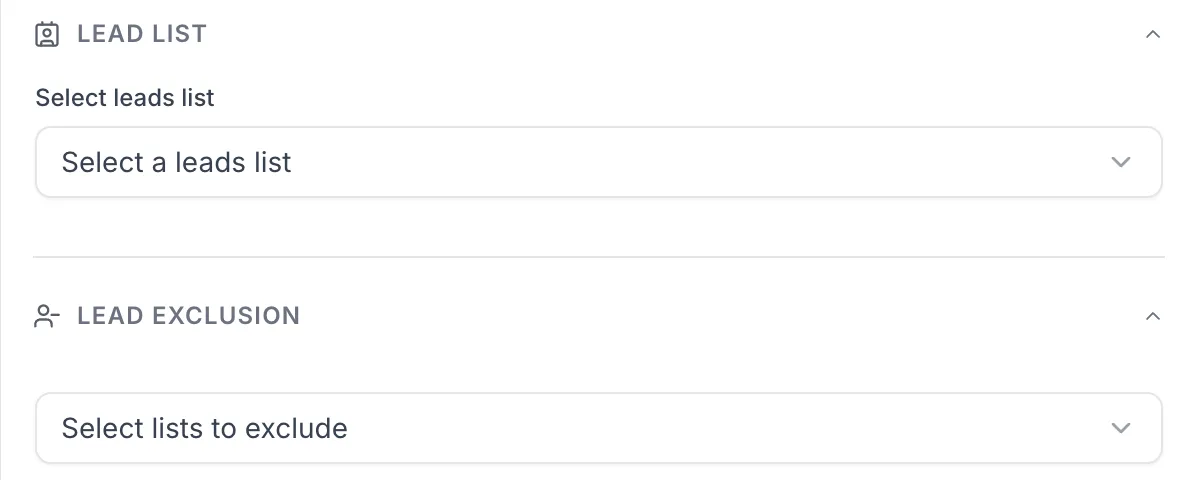 12
12- 1The contacts to prospect: Lead list.
- 2The lists to leave out: Select lists to exclude.
To keep out a whole company, whoever the contact, you need the blacklist. An exclusion list only removes the addresses and URLs it contains.
Adding unsubscribes to the blacklist automatically
By default, a prospect who unsubscribes only leaves the current campaign. Their record switches to “Unsubscribed”, which protects them as long as you reuse the same list. But if they are in another list, or you re-import them, they can get a new campaign.
To prevent that, tick Add to the blacklist if the prospect clicks the unsubscribe link under More settings. It is off by default: tick it on every campaign.
- The prospect has to confirm. The link opens a page with a Confirm button. Clicking the link without confirming does not unsubscribe.
- The link goes through your tracking domain. If that domain stops responding, unsubscribing stops working too: see the tracking domain.
- Insert it with the editor: Add variable, Insert section, Unsubscribe link, or type “/” in the text. You can rewrite its text, but don't put spintax in it, which breaks it.
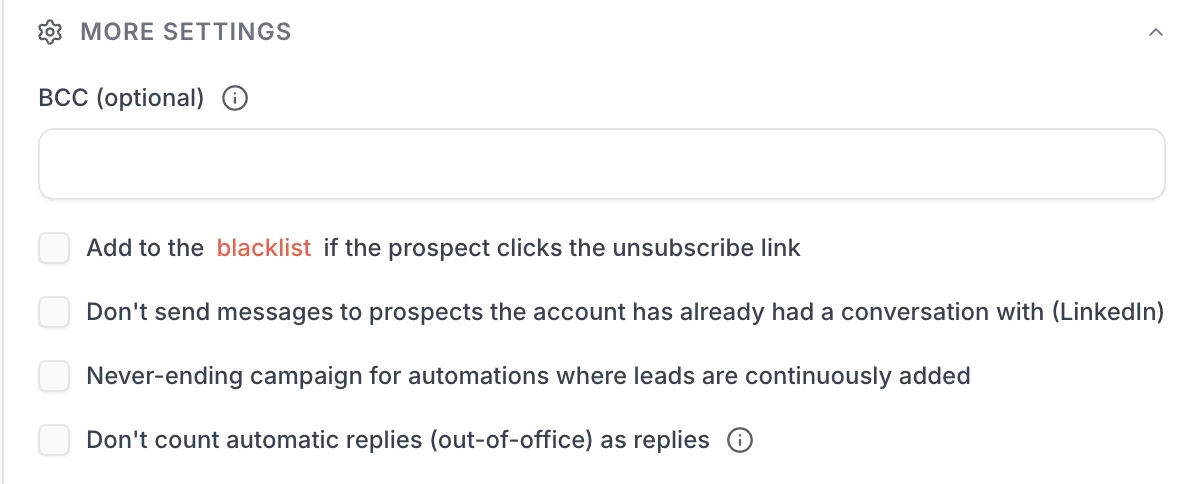 12
12- 1Tick Add to the blacklist if the prospect clicks the unsubscribe link.
- 2Optional: don't write to profiles the LinkedIn account is already talking to.
Not contacting people already contacted
Between two campaigns, Emelia removes nothing on its own: that is deliberate, you may want to follow up with someone six months later. Depending on what you want to avoid, there are several methods:
- Reuse the same list: contacts marked “Bounced” or “Unsubscribed” are skipped automatically in the new campaign.
- Leave out every contact from a past campaign: add its list or lists to the new campaign's Lead exclusion.
- Leave out only those who replied: in the old list, filter the Status column on “Email reply” and “LinkedIn reply”, click Create a list, then exclude that new list.
- Clean a new list before enriching it: the Deduplicate tool in Lead Lists removes the people already in your old lists, and saves you credits (cleaning and deduplicating a list).
- Find a person: in Lead Lists, switch the search to Leads and type their full email address or LinkedIn URL.
When a prospect replies, even with “stop”, their sequence ends in that campaign. It does not stop them from receiving another campaign: to never contact them again, add their address to the blacklist.
Deletion or objection requests (GDPR)
When someone asks not to be contacted, or to have their data erased:
- Add their address to the blacklist, or their domain if the whole company asks. No campaign will write to them again, including after a future import.
- Delete their record from your lead lists if they ask for their data to be erased: open the list, tick the contact, then Delete.
- Keep the address on the blacklist: it is the only useful trace, the one that stops the next file from contacting them again.
- Reply briefly to confirm it is done.
A visible unsubscribe link, at least from the second step onwards, is the basis of respectful B2B outreach: the person can opt out in one click, without having to write to you. Combined with the automatic blacklist option, it handles most requests without you lifting a finger. For questions about Emelia's own compliance (hosting, sub-processors, data processing agreement), write to support.
Frequently asked questions
The questions we get asked on this topic, answered briefly.
A prospect unsubscribed but still gets my emails
Two common causes. They clicked the link without confirming: the page that opens asks them to click Confirm, otherwise nothing is recorded. Or they are getting another campaign: without the “Add to the blacklist if the prospect clicks the unsubscribe link” option, unsubscribing only applies to the current campaign. Either way, add their address to the blacklist: it is checked before every send.
Can I block a whole domain?
Yes, in the blacklist: type example.com instead of an address. Exclusion lists, on the other hand, don't work by domain.
Is a contact who bounces blacklisted?
No. They leave the sequence and their record switches to “Bounced”, which makes them skipped if you reuse the same list. But a file that contains them again could contact them again.
Why are some contacts “Blacklisted” when I never added them?
Check your blacklist first: a domain added one day (a customer's, or even a consumer domain) blocks every address on that domain. Another cause: a file imported with a Status column coming from an export, which copied the original status.
Does the blacklist apply to campaigns already running?
Yes. It is checked before every send: a contact added mid-sequence receives nothing more, even if the send was already scheduled.
Does a “stop” reply put the prospect on the blacklist?
No. Any reply ends their sequence in the current campaign, nothing more. For them to never receive anything again, add their address to the blacklist.
Can I import a whole blacklist?
Yes, by pasting all the addresses and domains at once into the field on the Blacklist page, separated by commas, spaces or line breaks.