Importing a CSV contact file into Emelia
Your file becomes a lead list, which you then plug into one or more campaigns. Here is how to prepare it, import it, map its columns, and avoid the two mistakes that cost the most: contacts lost on import, and prospects who get the same email twice.
How Emelia stores your contacts
In Emelia, contacts live in lists, grouped under the Lead Lists menu. A campaign does not hold a file: it points to one or more lists and works out its recipients from them, minus the lists you exclude.
In practice, you import once, into a list, and reuse that list wherever you want. The list is also where you add contacts later, run the email finder, and see each contact's status.
.csv files only: an Excel workbook (.xlsx) has to be saved as CSV first. The separator is detected automatically: comma, semicolon, tab or vertical bar. Completely empty rows are skipped.
Prepare the file
Most failed imports are fixed before you even open Emelia. Go through the file with this checklist.
- One header row, at the very top. No title, logo or empty row above the column names.
- Every column name different, case included:
Emailandemailcount as a duplicate. This is the number one cause of failed imports: an empty email column, values landing in the wrong fields, and no error message. - One email column only, and one address per cell.
- First name and last name in two separate columns. Personalization, the email finder and LinkedIn automation all rely on these two fields.
- The company website or domain if you want Emelia to find the addresses: it is the piece of data that moves the result the most.
- All your personalization variables (opening line, city, industry, pre-written message). A list can be completed later, but it is simpler to have everything from the start.
- UTF-8 encoding, otherwise accented characters turn into gibberish in your emails.
- No useless columns: empty columns, internal IDs,
email_emeliaanddomain_emeliacolumns left by an older email search, and above all theStatuscolumn of an export (more on that below).
In Excel: File > Save As > CSV UTF-8 (Comma delimited), not plain “CSV”. In Google Sheets: File > Download > Comma-separated values (.csv). Note that Google Sheets only exports the tab you are looking at.
Step 1: create a new list
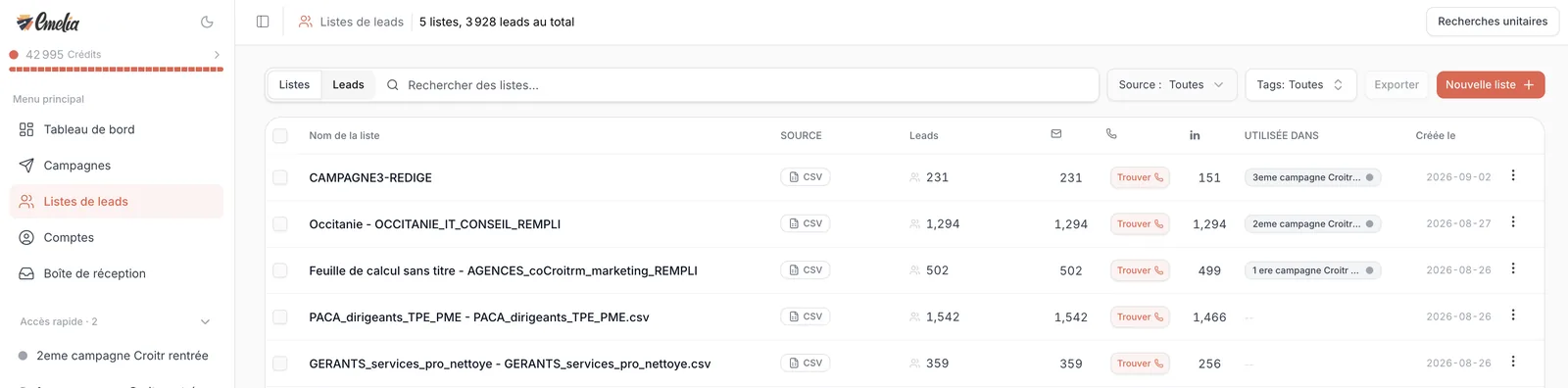
In the left menu, open Lead Lists (Listes de leads on the screenshot), then click New List at the top right.
 12
12- 1In the left menu, open Lead Lists.
- 2At the top right, click New List.
Step 2: drop the file
Drag your file into the drop zone, or click it to pick the file on your computer. Give the list a name, then click Upload.
Pick a name you will recognize in three months, when you look for it in a campaign's settings: the target, the source and the date are enough (“HR directors Lyon, October 2026”).
Step 3: map the columns
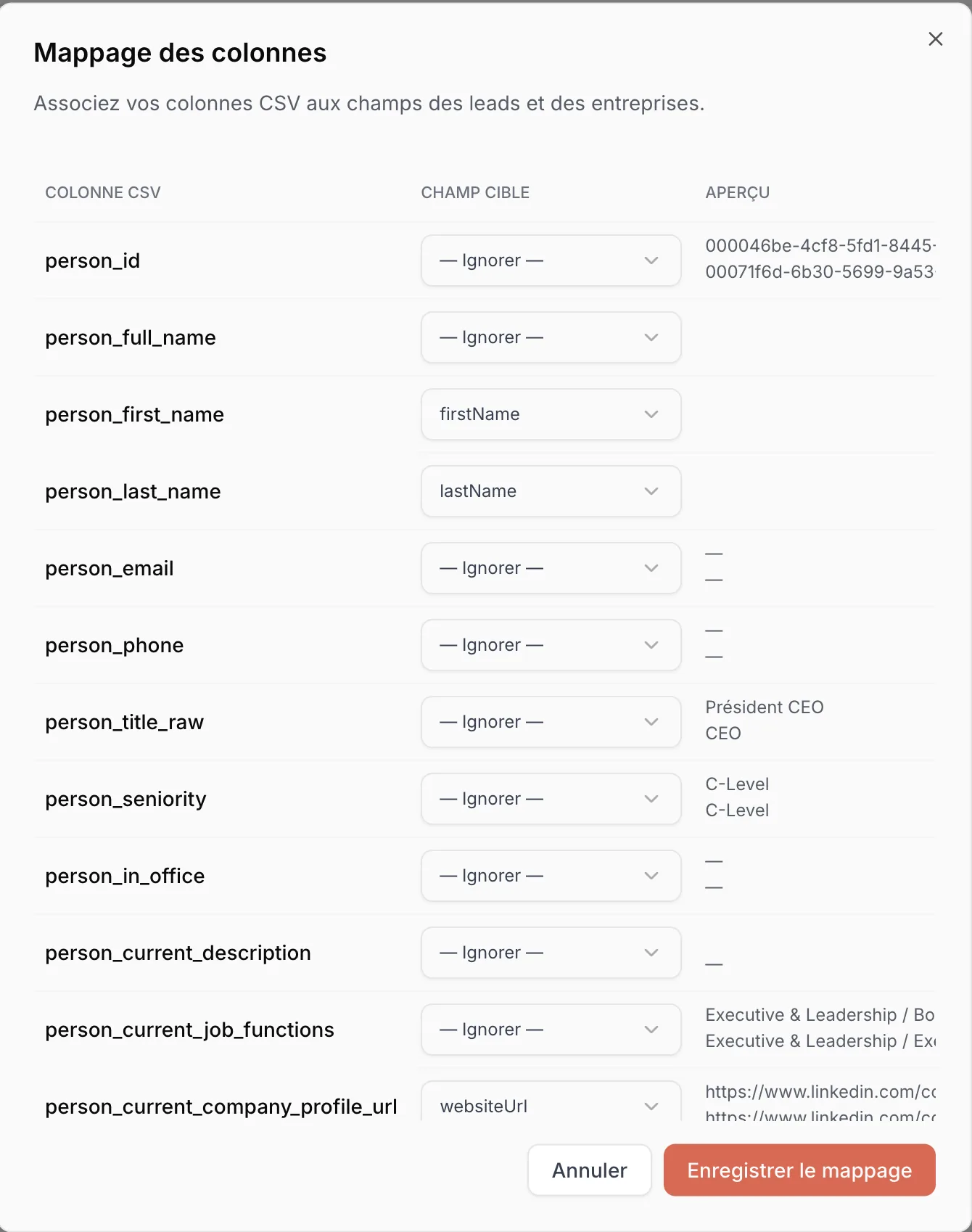
The Column Mapping window opens. On the left, the name of each column in your file. In the middle, the target field: what that column will become in Emelia, and the only place you need to act. On the right, a preview of the first values, which saves you from picking the wrong column when two names look alike.
Emelia has already done part of the work. It recognizes columns by their name (“First Name”, “Prénom”, “Email”, “Company”, “Website”, “LinkedIn”…), by their content (a column full of email addresses or URLs), or because they carry the name of a custom variable you already created in your account. Everything else lands on Skip, and a skipped column is not imported.
 1234
1234- 1Left: the column name in your file.
- 2Middle: the target field. Click it to change it.
- 3Right: the first values, so you can check.
- 4When everything looks right, click Save Mapping.
 12
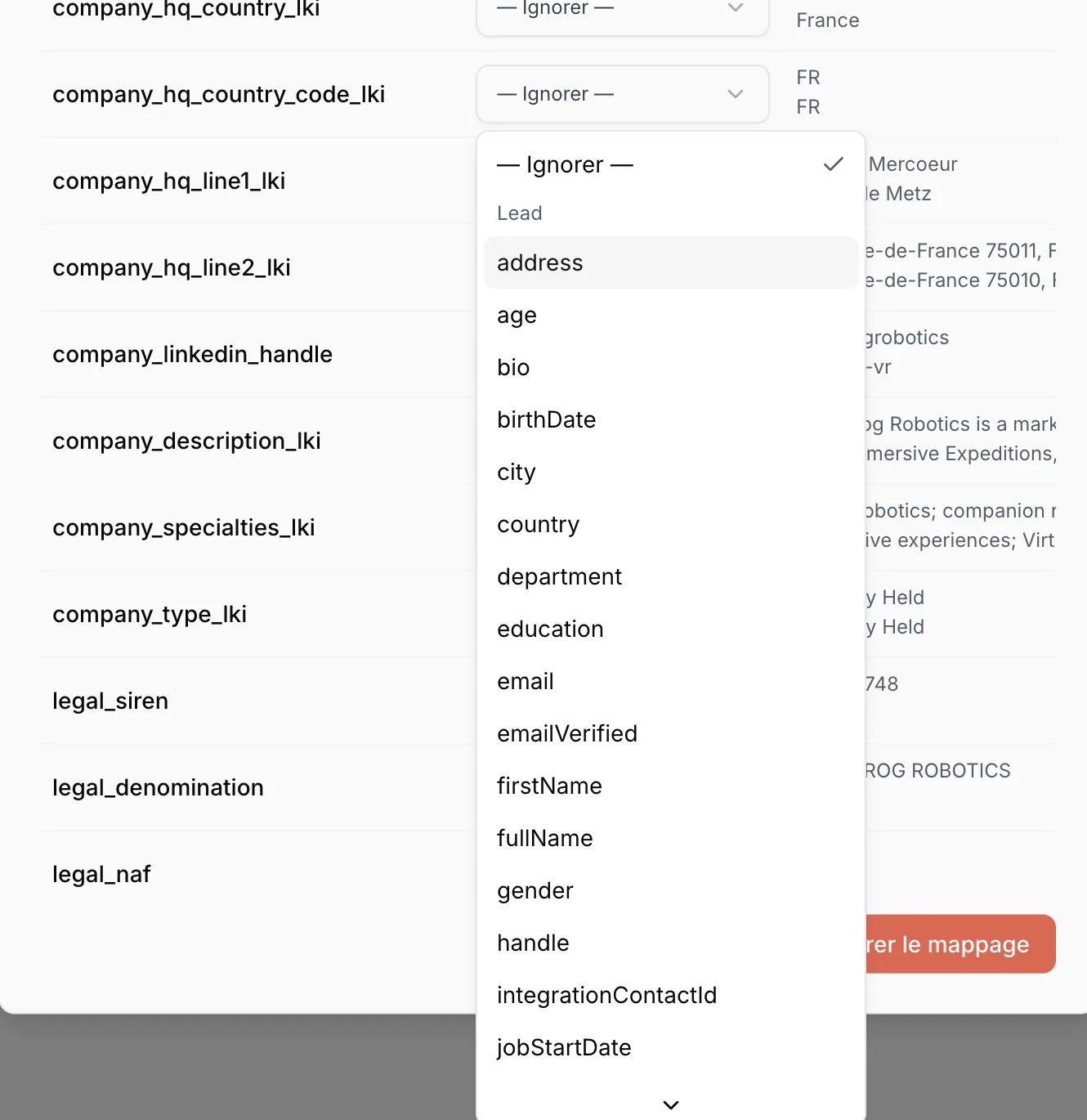
12- 1Skip: the column is not imported.
- 2Standard fields, by technical name:
firstNamefor the first name.
The names worth knowing: firstName, lastName, email, linkedinUrlProfile (LinkedIn profile URL) and jobTitle on the lead side; companyName, websiteUrl and companyDomain on the company side.
The fields that really matter
| Field | What it is for |
|---|---|
email | The address emails are sent to. Without it, the contact can only receive LinkedIn steps. |
firstName, lastName | Personalization, the email finder and LinkedIn automation. Always map them to these standard fields, never to a custom variable. |
linkedinUrlProfile | Required for any LinkedIn step, and for finding a phone number. |
websiteUrl, companyDomain, companyName | Essential if you want Emelia to find addresses: the search starts from the website, then the domain, then the company name. |
jobTitle, city, industry… | Segmenting your lists and personalizing your messages. |
If no column is mapped to email or linkedinUrlProfile, Emelia warns you at the bottom of the window: these contacts can't be reached by any campaign. You can still import them, for example to find their addresses afterwards.
Importing a file without emails in order to find them afterwards is common. What matters is that you mapped the first name, last name and company (ideally its website): that is where the search starts. Details in finding email addresses.
Create a custom variable
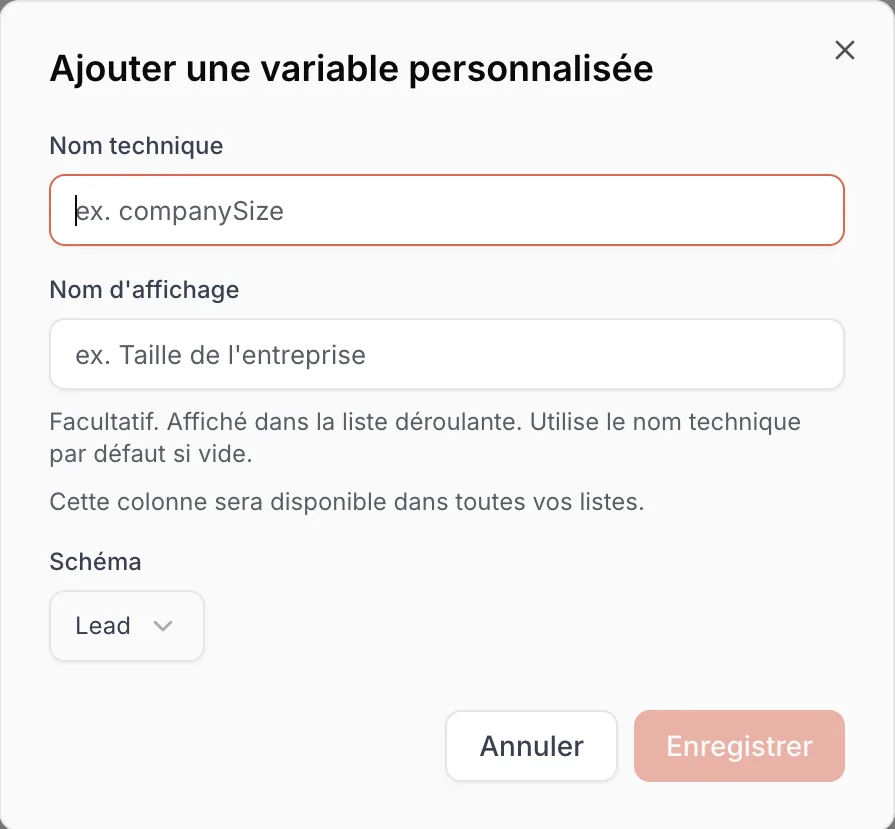
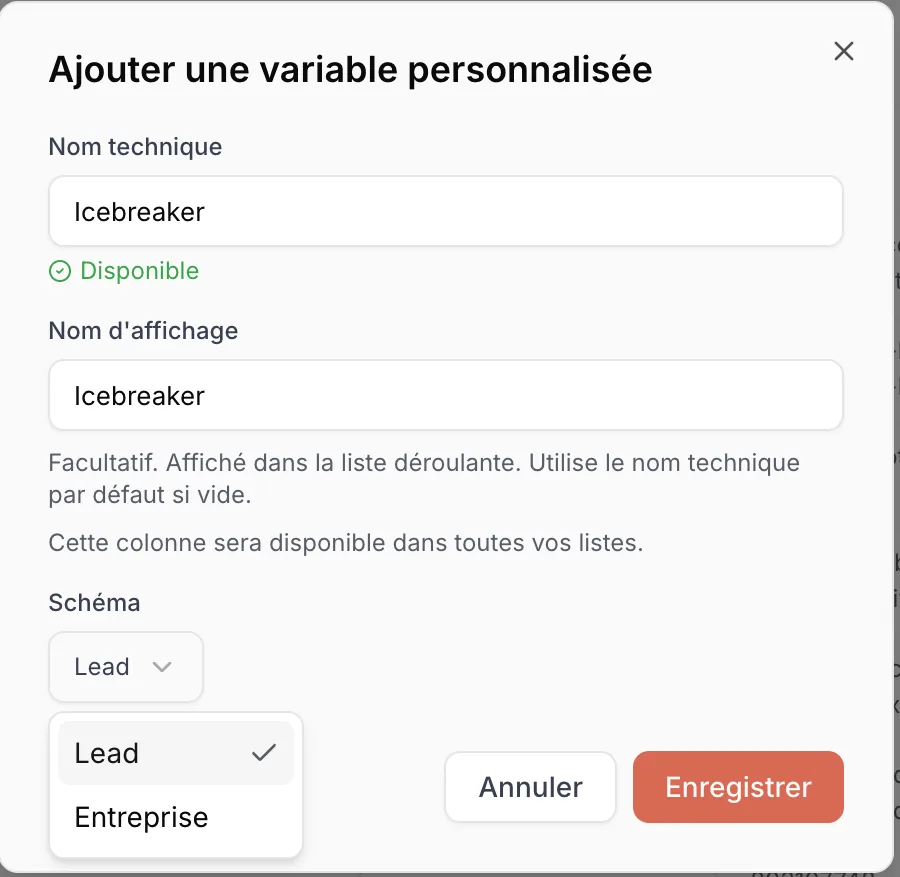
Some columns match no standard field yet are worth importing: an AI-generated opening line, a pre-written message, information specific to your trade. Open the field list and pick Add Custom Variable, at the very bottom. The Add Custom Variable window opens.
- Technical Name: letters, digits and underscores, no spaces or hyphens, and unique in your account (for example
openerormessage_step1). - Display Name: free text, with spaces and capitals (“Message, step 1”). Without it, Emelia shows the technical name.
- A variable created once stays available in all your lists. On your next import, a column carrying exactly its technical or display name is mapped to it automatically.
 123
123- 1The Technical Name: the one you will write between braces in your messages.
- 2The Display Name, optional, only helps you find your way.
- 3The Schema: Lead for information about the person, Company for information about the company.
 123
123- 1Emelia checks the name is free and shows Available.
- 2Pick Lead or Company.
- 3Click Save: the column is mapped to the new variable.
If you create icebreaker today and ice_breaker next month, you have two variables for the same thing. The day you write {{icebreaker}} in a message sent to a list that carries the other one, the email goes out with a blank where your opening line should be. Keep the same column names in your files, and insert variables with the editor's button rather than typing them: see writing and personalizing your messages.
Step 4: save and let the import finish
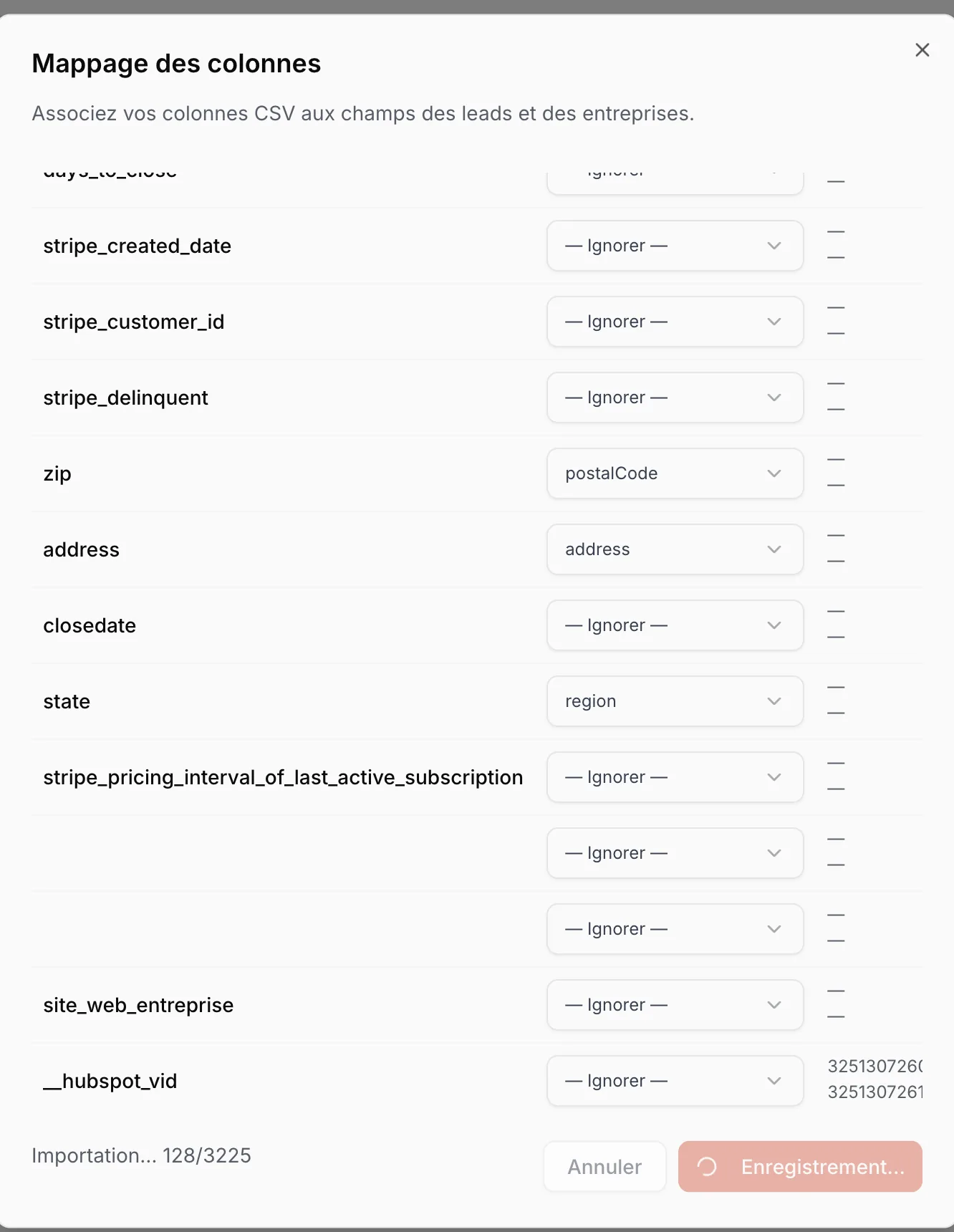
Click Save Mapping. Progress shows at the bottom left of the window, row by row. Once it is done, the list appears in Lead Lists with its number of leads, email addresses and LinkedIn URLs: a useful first check. If you expected 1,200 emails and see 40, a column was mapped wrong.
 12
12- 1Import progress, row by row.
- 2A column recognized on its own:
zipbecomespostalCode.
If you close the window before saving, the list stays in Pending mapping. Open the ⋮ menu at the end of its row and pick Map columns to pick up where you left off.
Step 5: plug the list into a campaign
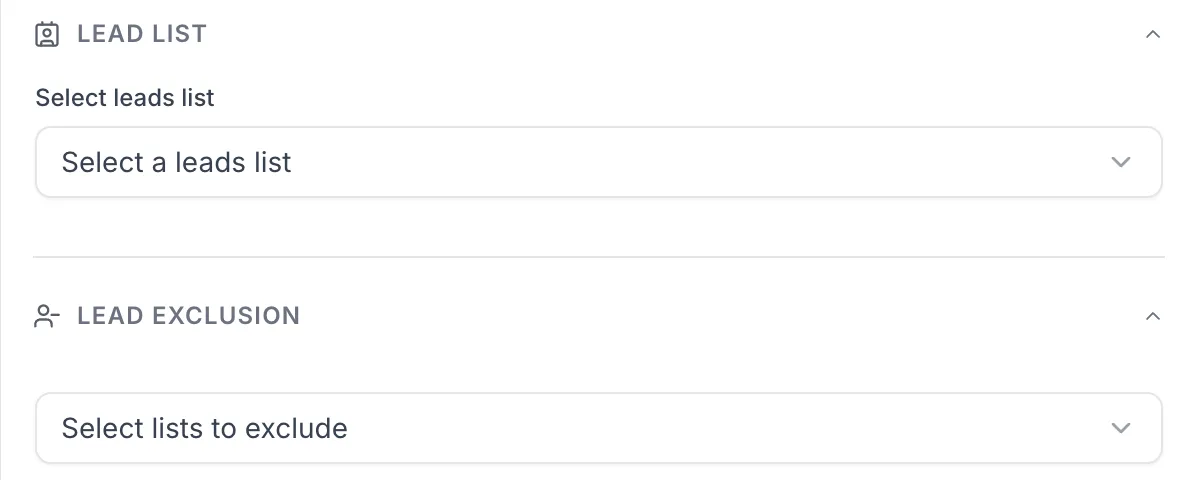
In your campaign, the Campaign Settings panel has a Lead list block: select your list there. The block right below, Lead exclusion, removes contacts found in other lists (customers, people already contacted): everything is explained in blacklist and exclusions.
 12
12- 1Pick the list to contact in Lead list.
- 2Optional: the lists to leave out in Lead exclusion.
Above that, the campaign won't launch. There is no limit on the total number of contacts in your account: just split a big file into several lists, and duplicate the campaign for each one.
Duplicates and rows without an email
The list keeps everything. An address that appears twice in the file gives two records, and a row without an email is imported as soon as it holds at least one piece of data.
The campaign deduplicates. The same contact appearing twice, or in two lists attached to the same campaign, gets the sequence only once. The comparison uses the email address, or the LinkedIn URL when there is no address. Two different addresses for the same person, however, count as two contacts.
Rows without an email are still useful for a LinkedIn campaign or for an email search. But in a campaign that starts with an email, a contact without an address never gets past that first step: Emelia drops them, and they won't receive the LinkedIn steps that follow either. For them, run a campaign that starts with LinkedIn, or put a condition on the email variable at the top of the sequence.
Emelia does not stop you from writing, in a new campaign, to someone already contacted in another one: that is deliberate, you may want to follow up. To avoid it, use lead exclusion or the blacklist: see blacklist and exclusions.
Adding contacts or columns to an existing list
Open the list and click Import at the top right. This button exists on lists created from a file or created empty, not on a list synced with HubSpot or Pipedrive, nor on a LinkedIn extraction.
After the usual mapping, Emelia asks which field identifies duplicates between the new file and the list: most often the email address, detected automatically. Matching rows are not created again: their new columns are added, and for columns present on both sides you choose Keep existing or Use new values. The other rows become new contacts. Finally, click Start Import.
If the list is already used by a running campaign, the new contacts join it at the first step, at the campaign's new-contacts-per-day pace.
You generated opening lines for contacts already imported? Add the column to your file (keeping the email column), then import it into the same list with the duplicate check on email. The opening lines land on the right records without creating a single duplicate.
Re-importing an export: the status trap
A list export (⋮ menu > Export list) contains a Status column: each contact's status, such as “Email sent”, “Email opened”, “Email reply” or “Bounced”. If you re-import that file, Emelia automatically maps this column to the contact's status. The re-imported records therefore show a status… but they are new records.
A campaign remembers what it already sent record by record, not address by address. If you delete the old list and attach the new one to the same campaign, it picks all those contacts up again at the first email. Those who already got it receive it a second time, and an “Email reply” status inherited from the file does not protect them. Only the “Bounced” and “Unsubscribed” statuses, and the blacklist, block sending.
- Keep the original list in the campaign, and add new contacts with that list's Import button.
- Add contacts to a list already attached rather than attaching a new list to a running campaign.
- If you must start from an export: set the Status column to Skip, and put the old list in lead exclusion.
- Deleting a list and then re-importing its export into a campaign already launched.
- Keeping the Status column of an export, or of a file coming from another tool.
- Fixing addresses by deleting and recreating contacts of a running campaign: they start again at the first email.
Your contacts live in a CRM?
If your file is just a HubSpot or Pipedrive export, connect the CRM instead: the list updates itself every night, and campaign activity can flow back to the contact record. Mapping works exactly as it does for a file.
Frequently asked questions
The questions we get asked on this topic, answered briefly.
Why does my campaign count fewer contacts than my file?
The list keeps every row holding at least one piece of data; only completely empty rows are skipped. The campaign is what removes contacts: duplicates (same email, or same LinkedIn URL when there is no email), contacts in an exclusion list, those on the blacklist and, in a sequence that starts with an email, contacts without an address.
My accented characters look broken (é, è): what do I do?
The file was not UTF-8. Reopen it in your spreadsheet, save it as CSV UTF-8, delete the broken list if no campaign uses it yet, then import again. Fixing records one by one is not worth it.
The email column is empty after the import
Three causes, in this order: two columns share the same name (case included) and the empty one was picked; the email column was left on Skip during mapping; an old email_emelia column was mapped instead of the real one. Fix the file, then import again.
Can I import an Excel file (.xlsx)?
No, only .csv files are accepted. In Excel, save the file as CSV UTF-8 (Comma delimited).
How do I add a variable to contacts already imported?
Add the column to your file, keep the email column, then import it into the same list with the Import button and the duplicate check on email. The new values complete the existing records instead of creating duplicates.
Will a contact who is in two lists get my emails twice?
Not if both lists are attached to the same campaign: it recognizes the contact by email address and sends the sequence once. Between two different campaigns, though, nothing is automatic: use lead exclusion.
How many contacts can I import?
There is no limit on the total number of contacts in your account. The limit is per campaign: 30,000 contacts at most, beyond that the campaign won't launch. Split big files into several lists and duplicate the campaign.
What happens to a column left on “Skip”?
It is not imported at all. That is the right setting for every column that does not help you send, segment or write: a full export often holds dozens of useless columns that just weigh the list down.