Import a contact list from HubSpot into Emelia
Your contacts live in HubSpot, your campaigns go out from Emelia. The connection saves you a CSV export every time, can keep the list up to date every night, and sends campaign activity back to the CRM.
Two things travel through this integration: the list coming down from HubSpot to Emelia and, if you ask for it, activity going back up from Emelia to the contact's record in HubSpot. The first saves you re-importing a file after every change, the second puts the outreach history where your team will look for it.
Step 1: create the list
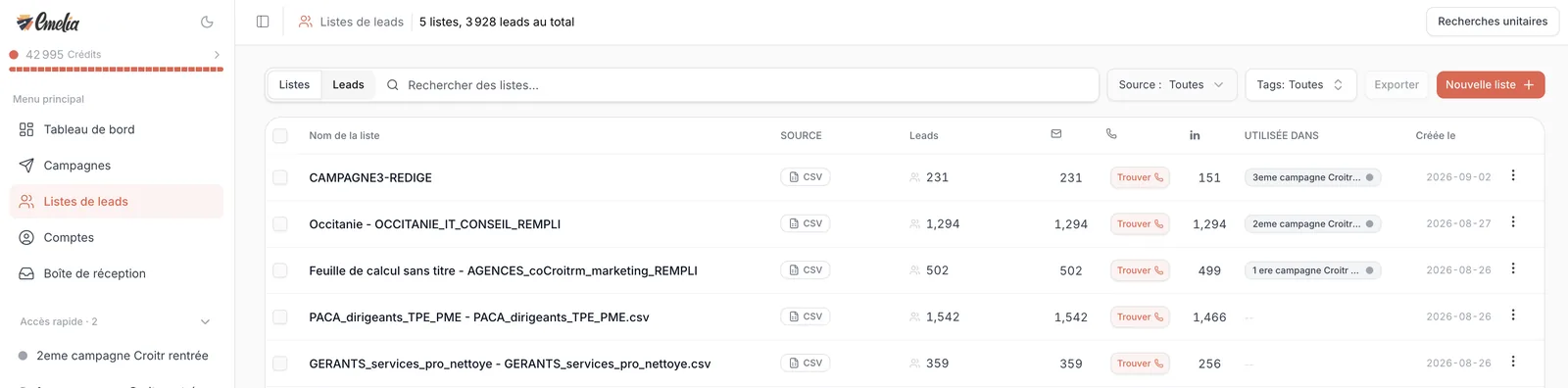
In the left menu, open Lead Lists, click New List at the top right, then pick HubSpot.
 12
12- 1In the left menu, open Lead Lists.
- 2At the top right, click New List.
Step 2: connect your HubSpot account
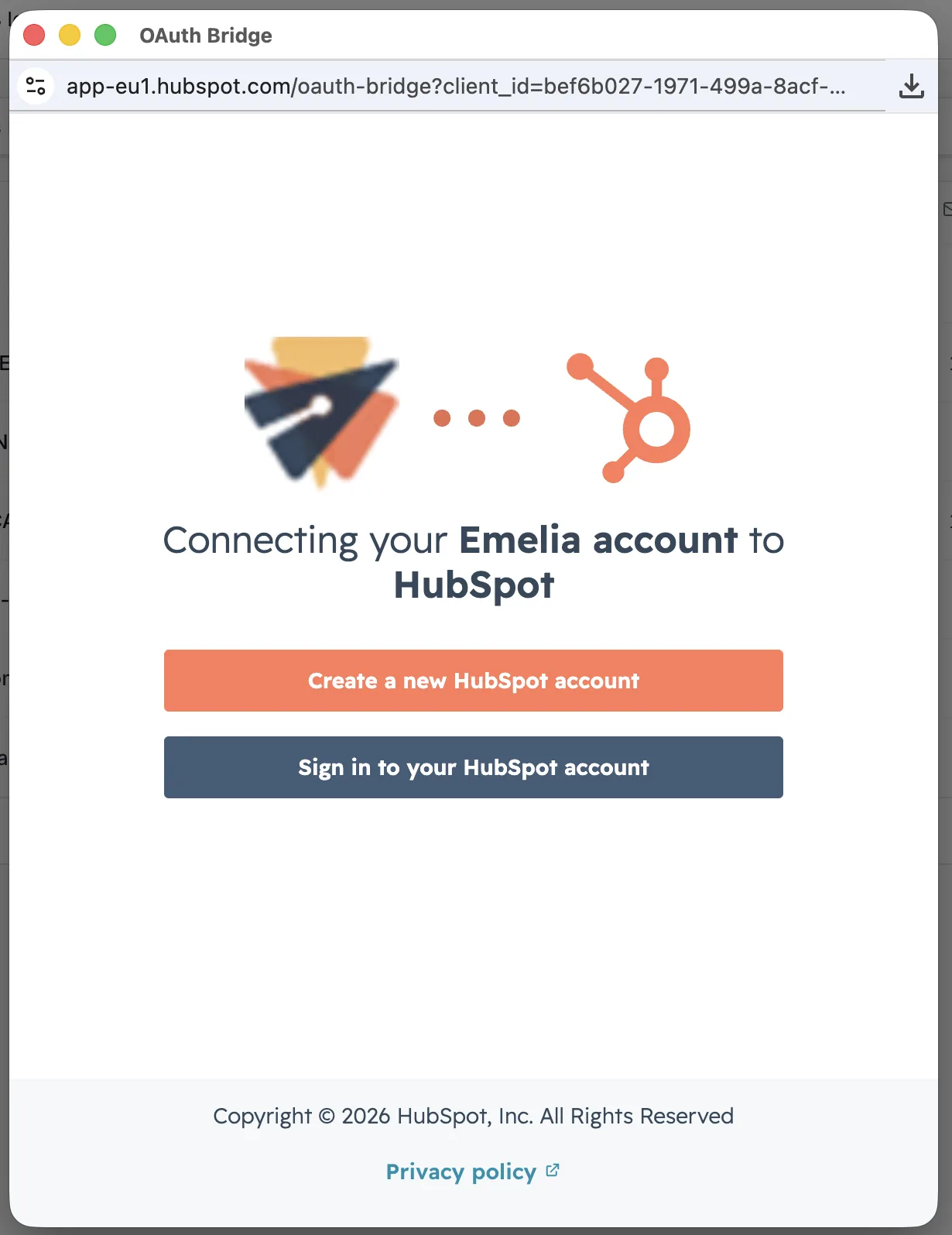
The first time, click Connect HubSpot: HubSpot's authorization window opens. You sign in, you approve, and it closes on its own. If nothing opens, your browser is blocking pop-ups: allow them for this site and try again.
At the bottom of the import window, a line then reminds you which account you are connected with, and Connect another account replaces it for your next imports.
 1
1- 1Sign in to your HubSpot account, then approve the access.
It is a delegated authorization: you can revoke it from HubSpot at any time, without changing your password. Once granted, this step does not come back.
Step 3: pick the list to import
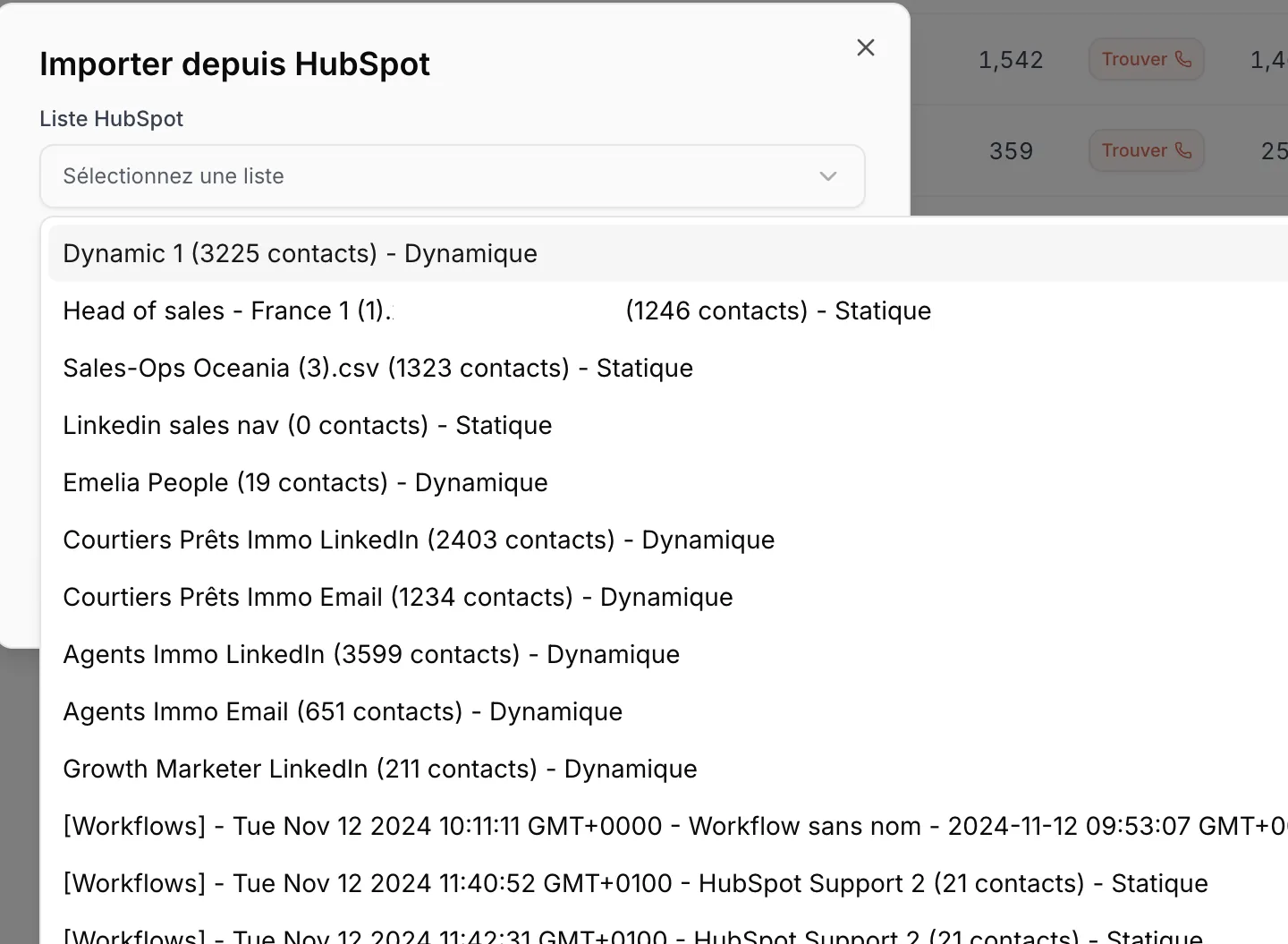
The HubSpot list menu shows your lists with, for each one, its number of contacts and its type. That type decides everything that follows. Also set the Send activities to HubSpot switch (see below), then click Import list.
| HubSpot list type | What it gives you in Emelia |
|---|---|
| Static | A snapshot: the contacts present at import time, and nothing more. |
| Dynamic | A living list: on each sync, Emelia pulls in the contacts that entered the HubSpot list since last time. A contact who leaves it stays in the Emelia list: removing them is up to you. |
 123
123- 1Open the HubSpot list menu.
- 2A dynamic list, which will keep updating.
- 3A static list, imported once.
Step 4: map the columns
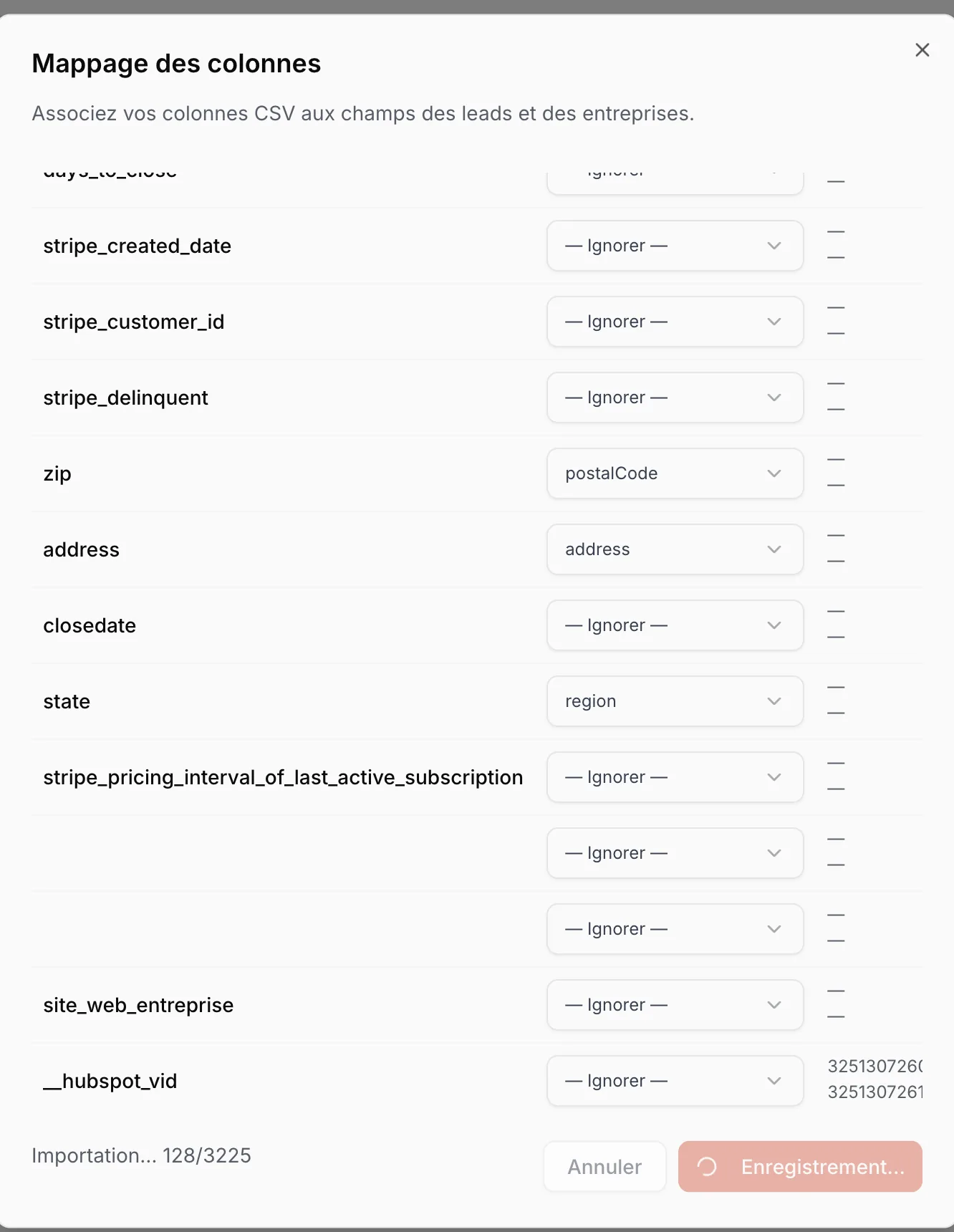
Emelia shows you the properties found in HubSpot and asks what to map them to. Some are recognized on their own: zip becomes the postal code, address the address, state the region. Everything else lands on Skip and is not imported, which is intended: a CRM holds plenty of internal properties that have no place in a campaign.
Check that email, first name, last name and company are mapped, and leave the __hubspot_vid column on Skip: Emelia uses it anyway to link each contact to its HubSpot record.
 123
123- 1A property recognized on its own:
zipbecomespostalCode. - 2The HubSpot ID: leave it on Skip.
- 3Import progress.
Syncing: every night, or on demand
A dynamic list does not update the second HubSpot changes. Emelia says so at the top of the list: “Dynamic lists sync automatically every night”. The sync runs at midnight UTC. Thirty contacts added to your HubSpot list this morning will show up in Emelia tomorrow.
If you don't want to wait, open the list and click Resync now at the top right. The sync runs in the background, and how long it takes depends on the number of contacts to fetch. A static list doesn't have this question: it is frozen by definition.
 12
12- 1Resync now runs the update without waiting for the night.
- 2The reminder of the automatic schedule.
You can only run it once every fifteen minutes on the same list, and it stays unavailable while an email search, phone search or verification is running on that list.
What happens to contacts already there
- No duplicates when syncing. A contact already in the list is not added a second time: it is recognized by email address, failing that by HubSpot ID, failing that by LinkedIn URL.
- No update of existing records. A property changed in HubSpot does not change in Emelia for a contact already imported.
- No automatic removal. A contact who leaves the HubSpot list keeps being prospected until you remove them in Emelia, or add them to the blacklist.
- A separate list. The HubSpot list is not merged with your other lists. Within one campaign, a contact in two lists gets the sequence once; between two campaigns, use lead exclusion.
- No file uploads. There is no Import button on a HubSpot list, and a dynamic list can't be merged with another one.
Plugging the list into a campaign
Select the list in the Lead list block of the campaign settings. Contacts who arrive later through the sync enter the campaigns that use the list, at the first step, at the campaign's new-contacts-per-day pace.
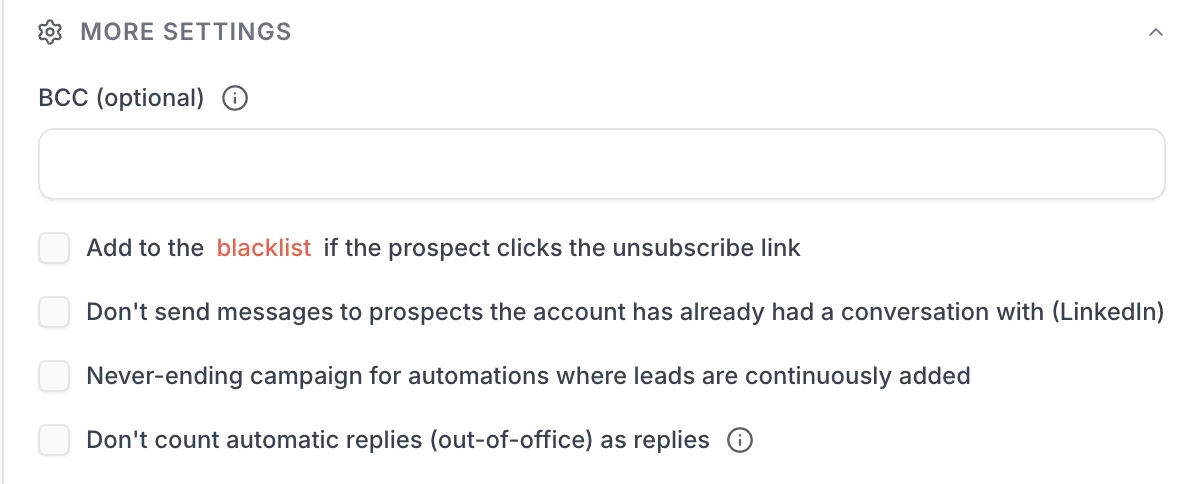
A campaign that has finished is no longer fed. That is the classic trap with dynamic lists: one day without new contacts, the campaign works through its list, closes, and contacts arriving the next day never enter it. For a list that must feed a campaign continuously, tick Never-ending campaign for automations where leads are continuously added under More settings.
 1
1- 1For a dynamic list feeding the campaign, tick Never-ending campaign.
Sending activity back to HubSpot
If you turned on Send activities to HubSpot at import time, Emelia adds a note to the contact's record in HubSpot when:
- they open an email or click a link (only if open or click tracking is on in the campaign, which it is not by default);
- they unsubscribe;
- they accept your LinkedIn invitation, or reply to you on LinkedIn (their reply text is included);
- a manual task in the sequence is marked as done or failed.
Your sales team sees the outreach history without leaving the CRM, and a contact who just reacted is not cold-called by someone else three days later. That is the main benefit of the connection over a CSV export: a file gives you the contacts once, the connection also gives you back what the campaign produced.
To keep a copy of every email in HubSpot, use the BCC (optional) field under More settings, with the drop-box address HubSpot gives you. The copy only carries the email itself, and it inflates the open rate shown in Emelia: test on a small volume.
Frequently asked questions
The questions we get asked on this topic, answered briefly.
How often does a HubSpot list update in Emelia?
Once a night, at midnight UTC. A change made in HubSpot during the day therefore does not show up right away. If you don't want to wait, open the list and click Resync now, at most once every fifteen minutes.
What is the difference between a static and a dynamic list?
A static list is a snapshot: the contacts present at import time, nothing else. A dynamic list fills itself up in HubSpot based on criteria, and on every sync Emelia pulls in the contacts that just entered it. It does not remove those who leave. To feed a campaign continuously, you want a dynamic list, with the “Never-ending campaign” option.
What does “Send activities to HubSpot” mean?
It is the reverse trip of the list. When the option is on, opens and clicks (if tracking is on), unsubscribes, accepted LinkedIn invitations, LinkedIn replies and manual tasks are posted as notes on the contact's record in HubSpot.
My campaign no longer gets the new contacts from my dynamic list
Check its status: a finished campaign is no longer fed by the sync. Relaunch it, and tick Never-ending campaign under More settings so it does not close itself again.
My HubSpot list import is stuck
The most common cause is a very large number of custom properties. Reduce the properties you import (leave everything you don't need on Skip), and if the import does not move, write to support with the list name.
Does Emelia see my HubSpot password?
No. Authorization goes through HubSpot's own window, which issues delegated access. You can revoke it at any time from your HubSpot settings, without changing your password.
Can I do the same with Pipedrive?
Yes, the source is offered in the same window and works the same way, with one difference: a Pipedrive filter is always dynamic. See importing a list from Pipedrive.