Connect a client's LinkedIn account with an email invitation
The method to use when the LinkedIn account is not yours: the person gets an email, clicks the link and signs in themselves. You never see their password.
When this method is the right one
The main case: you are running outreach for someone else, a client, a colleague or an executive, and you do not have their credentials. You create an invitation for their email address, Emelia sends them the link, and they sign in themselves. They need neither an Emelia account, nor the extension, nor Google Chrome.
For your own account, use email and password instead, right in the connection window: same principle, without the detour through your inbox.
Step 1: open the invitation form
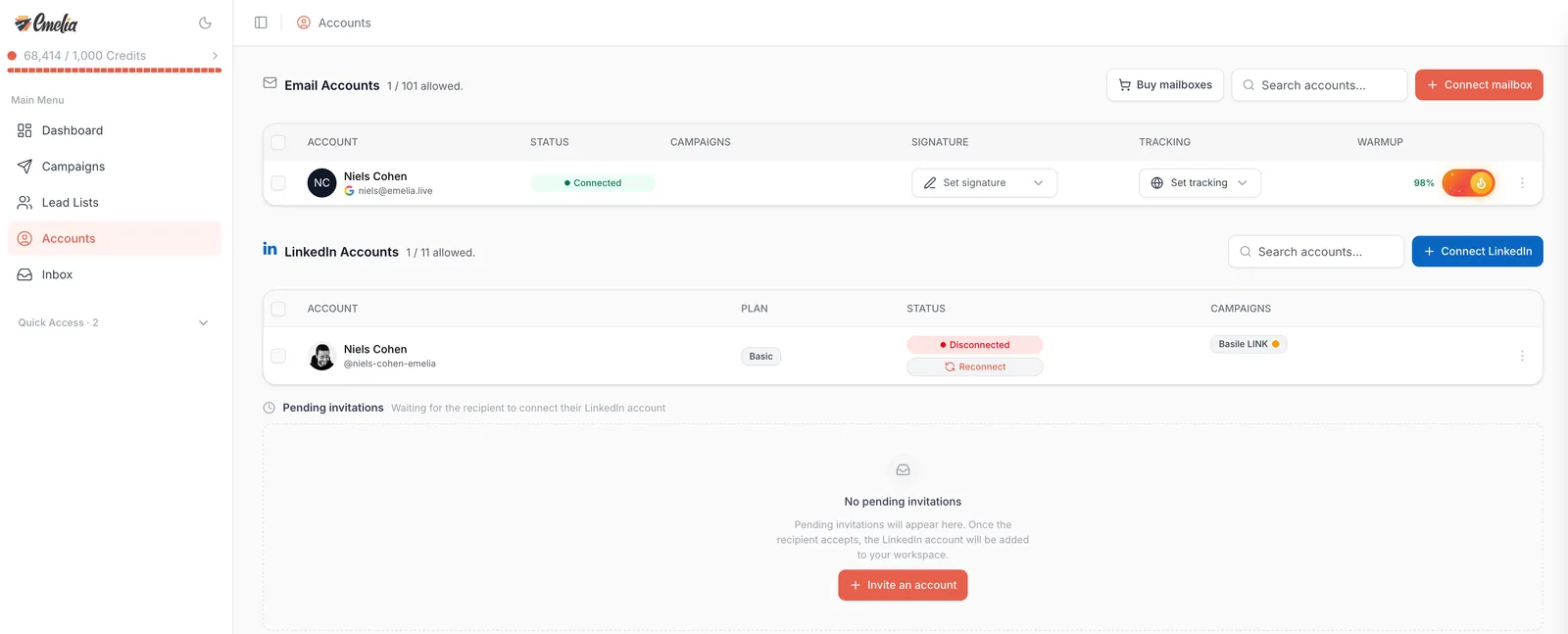
In Accounts, click Connect LinkedIn, then With email invitation. As long as no invitation is pending, an Invite an account button also appears below the list of LinkedIn accounts: it opens the same form directly.
 12
12- 1Click Connect LinkedIn, then choose With email invitation.
- 2Or, when no invitation is pending, click Invite an account.
Step 2: enter the address and send
Type the person's email address and click Send invitation. It does not have to be the address of their LinkedIn account, but it is where the link will arrive: pick an address they actually read.
An email from Emelia with your name in the subject line (“… invites you to connect your LinkedIn account on Emelia”), a sign-in button and the three steps to follow. The link is valid for 48 hours. If they reply to that email, the reply comes to you.
Step 3: track the invitation, and share the link yourself if needed
The invitation appears under Pending invitations, below the list of LinkedIn accounts. If the email does not arrive (spam filter, typo) or you would rather use another channel, the Share connection link button copies the link: paste it into a message, a chat, wherever you like. The cross on the right deletes the invitation.
After that, the invitation expires and disappears from the list: the link no longer works. Just create a new one. Give the person a heads-up before sending, so the email does not sit unopened.
Step 4: the person signs in
The link opens a sign-in page hosted by Emelia. The person enters the email address and password of their LinkedIn account, then clicks Connect. The page works in any browser, mobile included.
Step 5: LinkedIn's verification
If LinkedIn wants to make sure it is really them, it asks for a verification, and this is where patience pays, because LinkedIn picks the method itself: a code sent by email, a code by text message, or a notification to approve in the LinkedIn mobile app.
The page shows the screen waiting for the code or the approval. For a notification, approving it on the phone is enough: the page detects it on its own. Once the verification is through, the account shows as Connected in your list of LinkedIn accounts.
They need their phone and their inbox at hand when they sign in. And if they close the page during the verification, the attempt is cancelled automatically after about ten minutes: they just need to reload the page and start again.
Reconnecting a client's account
When a client's account switches to Disconnected, click Reconnect on its row, then choose With email invitation. They get an email asking them to reconnect their account, explaining that the campaigns using it are waiting. Reconnecting updates the same account: its campaigns pick it up again without any change.
Frequently asked questions
The questions we get asked on this topic, answered briefly.
Does the email address have to be the one on the LinkedIn account?
No. It is the address Emelia sends the link to: pick the one the person reads. To sign in, they will then use their LinkedIn credentials, whatever those are.
Does the person receive an email automatically?
Yes. Emelia sends the link to the address you entered, in an email valid for 48 hours. You can also copy the link with “Share connection link” and send it yourself, if the email is slow to arrive or ended up in spam.
Do I see the person's password?
No. They type it on a dedicated sign-in page, and it does not appear anywhere in your workspace. That is the whole point of this method when you work for a client: you plug in their account without ever handling their credentials.
The link no longer works
It has probably passed its 48 hours: the invitation has expired. Create a new one from Connect LinkedIn, then With email invitation.
Emelia will not create the invitation
Two common causes. An invitation is already pending for that address: copy its link, or delete it before creating another one. Or your plan has no room left for another LinkedIn account: the “X / Y allowed.” counter tells you.
The invitation is still listed even though the account is connected
The invitation row can stay visible until it expires, 48 hours after it was created. The list of LinkedIn accounts just above is what counts: if the account shows as Connected there, you are done.
Which verification will LinkedIn ask for?
Impossible to predict. LinkedIn chooses depending on the account, the device and the sign-in context: a code by email, a code by text message, or a notification to approve in the app. Keep the phone within reach and watch the account's inbox at the same time.