Email warm-up: what it is, and how long it takes
A brand-new mailbox has no history, and mailbox providers distrust what they do not know. Warm-up builds that history: every day, Emelia has it exchange emails with other mailboxes in its network, ramping up gradually. That is what makes a new address credible before your first campaign.
| Included in | every plan, for all the mailboxes your plan lets you connect |
| Where to set it | Accounts, Warmup column |
| Health score | shown after 4 days of activity |
| Before a campaign, new mailbox | 2 to 3 weeks, 10 to 15 days at the very least |
| Warm-up volume | about fifteen to twenty emails a day at cruising speed, fewer at weekends |
| During your campaigns | leave it on, with the campaign set to 25 new contacts and 75 emails a day per mailbox |
How warm-up works
Emelia has your mailbox talk to other mailboxes in its warm-up network: your mailbox sends emails, receives some, replies to them. The messages are written automatically, short and with no link. On day one there are only a few exchanges; the volume then rises step by step, over about ten days, up to cruising speed.
The network also does some groundwork: when one of your warm-up emails lands in the junk folder of a network mailbox, it gets pulled out. For Gmail or Outlook, that is a sign that a recipient found your message legitimate.
Everything is automatic: nothing to write, nothing to configure. You turn it on, and it runs.
Received emails are filed automatically in a folder (or a Gmail label) called To Follow, so they do not clutter your inbox. Do not reply to them, and never mark them as spam: warm-up takes care of them.
Turn on warm-up for one mailbox
In Accounts, find the mailbox's row and click the switch in the Warmup column. Off, it shows a snowflake; on, a flame. Turning it on takes a few seconds: if nothing seems to happen, reload the page before trying again.
When you turn it on, Emelia checks that the mailbox can send a test email and that your domain has receiving servers (MX records). If either check fails, warm-up does not start and a message appears on screen: fix the cause before trying again.
 1
1- 1The switch in the Warmup column: a snowflake when warm-up is off, a flame when it runs.
The switch asks for no confirmation. Turning warm-up off, even for a few minutes, resets the ramp-up: when you turn it back on, the mailbox starts again from the first step. Do not touch it without a reason.
Turn on warm-up for several mailboxes at once
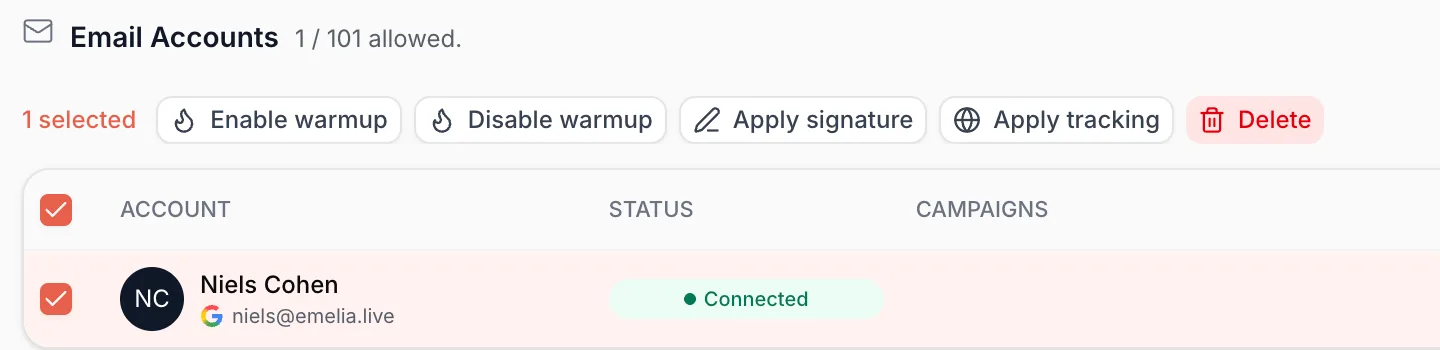
Tick the mailboxes in the left-hand column. A bar appears above the table: click Enable warmup. The button next to it, Disable warmup, does the opposite.
 123
123- 1Tick the mailboxes to warm up.
- 2The header box selects them all.
- 3Click Enable warmup.
Read the stats at a glance
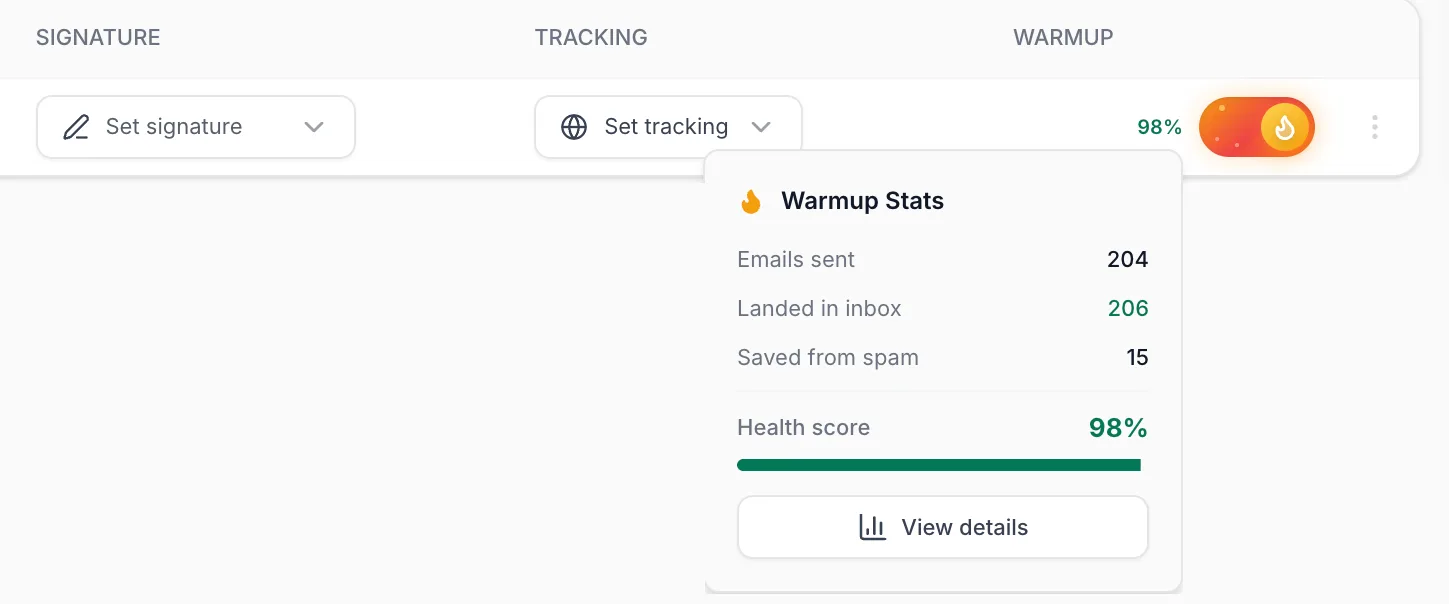
Once warm-up is running, a percentage appears to the left of the switch: that is the health score. Click it to open the Warmup Stats summary.
During the first four days there is no score yet: instead of the percentage, a small chart icon opens the same stats. That is normal, the calculation needs a few days of activity.
123- 1The health score: click it to open the summary.
- 2The Warmup Stats summary: emails sent, received, saved from spam, and health score.
- 3View details opens the full window.
The four figures in the summary
- Emails sent: the warm-up emails sent from your mailbox since the start.
- Landed in inbox: the warm-up emails your mailbox received from the other mailboxes in the network. It is the same figure as “Emails received” in the detailed window, and it is normal for it to be close to the number sent.
- Saved from spam: of the emails you sent, the ones that had landed in the recipient's junk folder and that the network pulled out.
- Health score: the share of your warm-up emails that reached the inbox directly, over the last 7 days of activity.
The detailed window
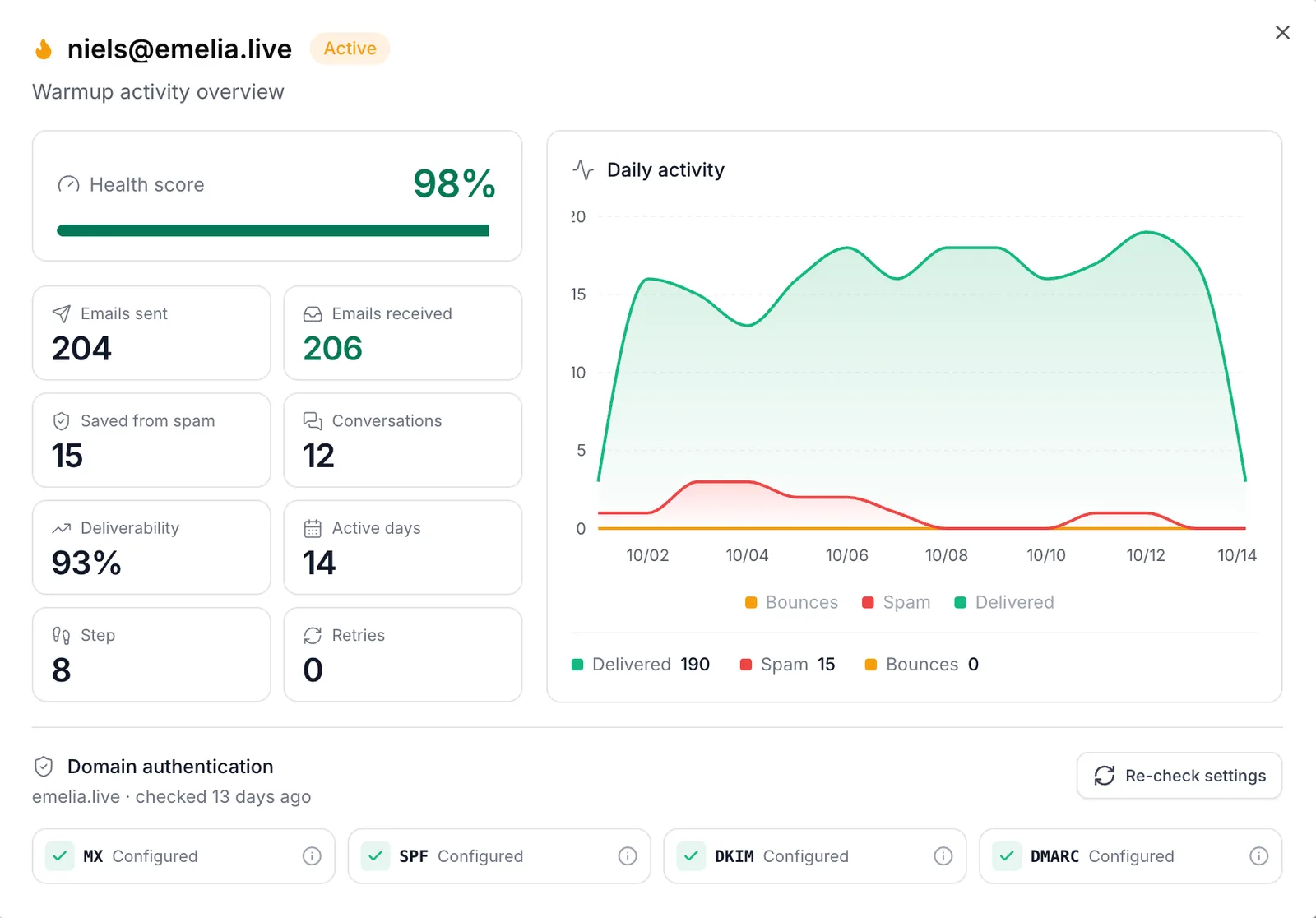
The View details button opens the mailbox's full window, with its status (Active or Paused), the date warm-up started and its whole history.
 123456
- 1Health score: the share of your warm-up emails that reached the inbox, over 7 days of activity.
- 2Emails sent, Emails received, Saved from spam and Conversations.
- 3Deliverability, Active days, Step and Retries.
- 4Daily activity: delivered in green, spam in red, bounces in orange.
- 5Domain authentication: the status of your MX, SPF, DKIM and DMARC records.
- 6Re-check settings runs the check again after a fix.
In the first days, the score relies on few messages: two or three emails in spam are enough to make it drop sharply. Look at the trend over several days, not at a single figure.
What each metric measures
| Metric | What it measures |
|---|---|
| Health score | The share of your warm-up emails that reached the inbox rather than spam or a bounce, over the last 7 days of activity, rounded down. |
| Emails sent and Emails received | The warm-up emails your mailbox sent, and the ones it received from the network, since the start. |
| Saved from spam | Your emails that landed in a network recipient's junk folder and were then pulled out. They count as “Spam” in the score and the chart. |
| Conversations | The exchanges currently running with other mailboxes in the network. Their number grows with each step. |
| Deliverability | The same calculation as the score, but over the mailbox's whole history instead of the last 7 days. So it moves much more slowly. |
| Active days | The number of days warm-up has been running. |
| Step | The ramp-up level, from 1 to 8. At 8, the mailbox has reached cruising speed. It goes back to zero if warm-up is turned off. |
| Retries | How many times warm-up was turned back on after an automatic stop. On a healthy mailbox, it stays at 0. |
| Daily activity | The day-by-day chart of your warm-up emails: Delivered, Spam and Bounces. |
| Domain authentication | The status of your domain's MX, SPF, DKIM and DMARC records, with the Re-check settings button. Details in the SPF, DKIM and DMARC page. |
How long to warm up before sending
The score and the waiting time are two different things. The score can hit 100 within four days while the mailbox still has no age behind it: mailbox providers also look at how long the address and the domain have existed and been sending regularly.
| Your situation | What we recommend |
|---|---|
| New mailbox on a new domain | 2 to 3 weeks of warm-up before the first campaign, 10 to 15 days at the very least, even with a score of 100. |
| You want to start during warm-up | Possible, very gently: about 5 new contacts a day, then increase in steps. |
| Older mailbox, already in use, with good open rates | No need to wait. Warm-up still helps maintain its reputation. |
| New mailbox on a domain that already has a history | A shorter warm-up is enough: the domain keeps its age. |
Above 90, all is well. From 80, you can send. Between 60 and 80, slow your campaigns down. Below 60, there is a problem to find before sending more.
Keep warm-up on during your campaigns
Yes, leave it running. It keeps a balanced flow of incoming and outgoing email, which is good for the mailbox's reputation, and it keeps pulling out of spam the messages that land there. A mailbox left unused for months also benefits from staying in warm-up.
Warm-up and your campaigns send from the same mailbox, so they share its sending limits. While warm-up runs, set each campaign to 25 new contacts and 75 emails a day at most, instead of 35 and 100 without warm-up. You set this in the campaign settings.
The volume drops on purpose on Saturday and above all on Sunday, as it would for a mailbox used by a person. It is not a stop.
If the score drops
A falling score means a larger share of your warm-up emails is landing in spam or bouncing. It is not a reason to turn warm-up off: turning it off does not bring the score back up, and the ramp-up would start from zero again.
- Lighten the campaigns on that mailbox, to around 50 emails a day, and leave warm-up running: the score usually recovers on its own.
- Check domain authentication at the bottom of the detailed window: a red cross on MX, SPF or DKIM is fixed at your host.
- Think about your host: some shared hosts degrade sending as soon as they detect outreach. If the score drops while you send almost nothing, that is often the cause.
- Reread your campaign messages: extra links, images, attachments or pushy sales wording weigh on the whole mailbox's reputation.
The score only measures warm-up emails, which are short and have no link. A real outreach message, longer and with a link, can land in spam with a perfect score. The real thermometer is your campaigns' open rate: around 50% is fine; below 30%, you have a deliverability problem.
If warm-up turns itself off
The switch is back on the snowflake and you did not touch it? It is a safeguard: Emelia stops warm-up when it can no longer run properly, and the reason is written in the detailed window. Every cause, and how to restart, is on the dedicated page.
Frequently asked questions
The questions we get asked on this topic, answered briefly.
Does warm-up cost extra?
No. It is included in every plan at no extra cost, for all the mailboxes your plan lets you connect. There is no warm-up-only plan.
My score is 100 after a few days, can I launch my campaign?
Not yet if the mailbox is new. The score measures the share of your warm-up emails that reach the inbox, not the mailbox's age. Wait two to three weeks, ten to fifteen days at the very least. If you really want to start, begin with about 5 new contacts a day.
I cannot see the warm-up emails in my mailbox, is that normal?
Yes. Received emails are filed in the To Follow folder or label. On a mailbox connected via SMTP/IMAP, that folder may not show in the webmail until it is enabled in the folder settings, and the emails sent by warm-up are not copied to “Sent”. If the counters move in Emelia, warm-up is working.
I receive odd emails, has my mailbox been hacked?
No, those are the warm-up emails, written automatically in English. Do not delete them by hand, do not reply, and do not mark them as spam.
How do I filter warm-up emails?
They are already filed in To Follow. If you want an extra filter, note that every warm-up email ends with two 7-character codes separated by a hyphen. One of them belongs to your Emelia account and appears on all your warm-up emails: that is the one to filter on.
Should I warm up a regular Gmail address?
It does not achieve much: there is no domain of your own behind an @gmail.com address, and that kind of address is not meant for B2B outreach. Use an address on your own domain.
I delete and reconnect my mailbox: is the warm-up lost?
The counter starts from zero in Emelia, but the reputation the mailbox has already earned stays. Just remember to turn warm-up back on after reconnecting.
I am changing host or editing my DNS, what about warm-up?
Turn warm-up off, make the change, wait about an hour, reconnect the mailbox if its settings changed, then restart warm-up. The domain keeps its age: a short warm-up of the new mailbox is enough.