Choose your situation
Connect a mailbox to a cold email tool
The method depends on who hosts your address, not on the app you read your email in. This is where people go wrong most often.
Where you connect a mailbox
In the left-hand menu, open Accounts, then click Connect mailbox at the top right of the Email Accounts block. A window offers four methods, plus a link to import several mailboxes at once.
 12
12- 1Open Accounts in the left-hand menu.
- 2Click Connect mailbox.
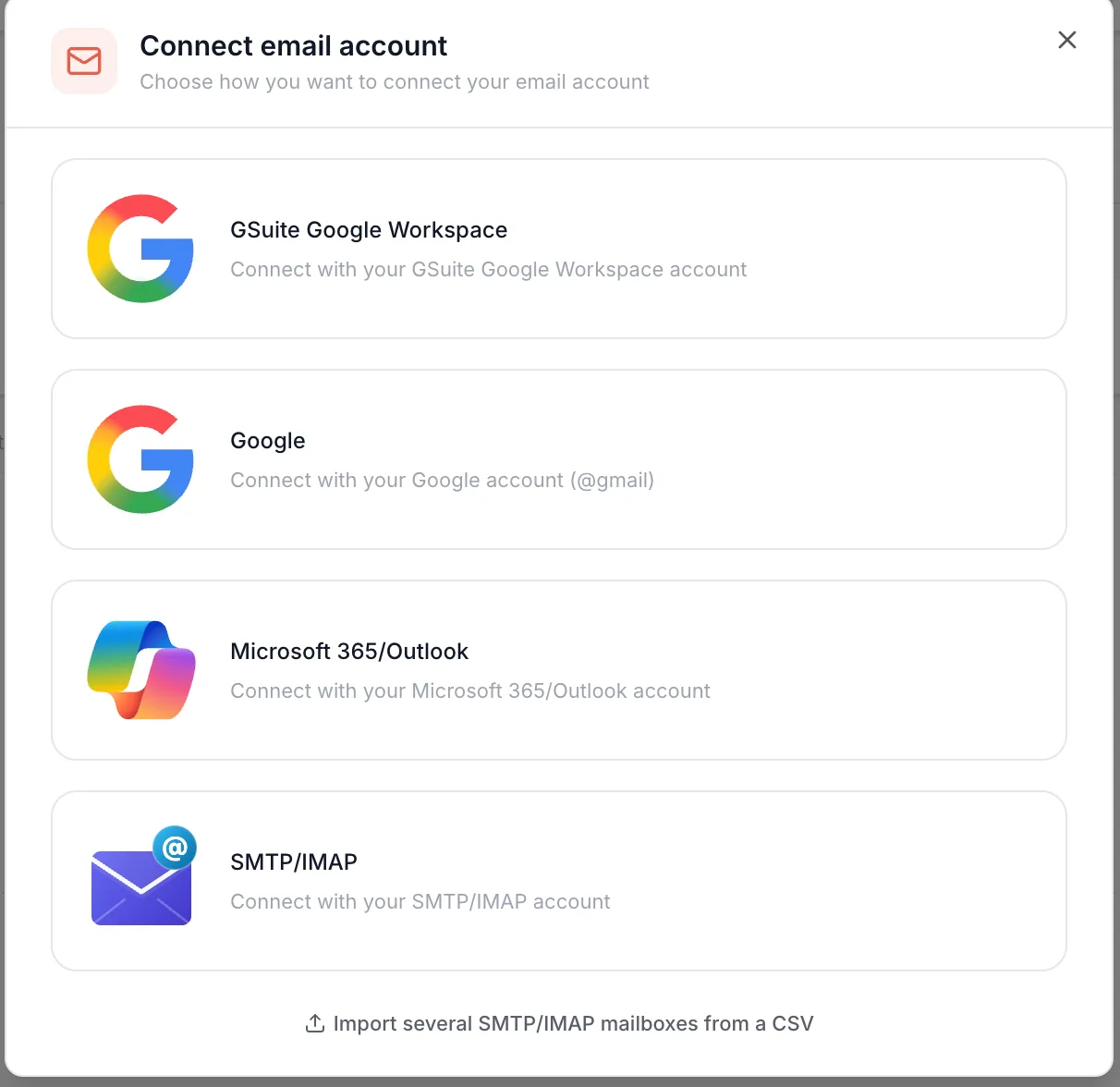 12345
12345- 1GSuite Google Workspace: an address on your own domain, hosted by Google.
- 2Google: an @gmail.com address.
- 3Microsoft 365/Outlook: an address hosted by Microsoft.
- 4SMTP/IMAP: every other host (IONOS, Zoho, OVH...).
- 5Import several SMTP/IMAP mailboxes from a CSV: to plug in ten at once.
Which method for which address
| Your address | Method to choose | What you need |
|---|---|---|
| On your own domain, hosted by Google (you read it in Gmail) | GSuite Google Workspace | A Google Workspace admin to approve Emelia, once |
| An @gmail.com address | 2-step verification and an app password | |
| On your own domain, hosted by Microsoft 365 | Microsoft 365/Outlook | The mailbox's Microsoft account, and sometimes the admin's approval |
| With another host: IONOS, Zoho, OVH, GoDaddy... | SMTP/IMAP | The mailbox address and password, sometimes the servers |
An address on your own domain hosted by Google connects with GSuite Google Workspace, not with Google, which is only for @gmail.com addresses: this is the number one cause of repeated disconnections. And a hosted Exchange mailbox from a provider other than Microsoft (OVH Email Pro, for example) is not a Microsoft 365 mailbox, even if it opens in an Outlook-like interface: it goes through SMTP/IMAP.
Choose SMTP/IMAP and enter the address and password. Emelia checks which host receives your domain's email: if it is Google Workspace or Microsoft 365, the window tells you and points you to the right option.
Several mailboxes to plug in?
For Google Workspace or Microsoft 365 mailboxes, repeat the connection for each one: the admin step is only done once. For ten or twenty SMTP/IMAP mailboxes, use the CSV import at the bottom of the same window.
Who is your provider?
Frequently asked questions
The questions we get asked on this topic, answered briefly.
Can I connect a shared mailbox or an alias?
Not with Google Workspace or Microsoft 365: Emelia checks that the account signing in is the address being connected. You need a real user mailbox, with its own license and password. Over SMTP/IMAP, it depends on the sending rights your host grants to the login you use.
How many mailboxes can I connect?
It depends on your plan: 3 mailboxes on Start, 50 on Grow, and Scale is shown as unlimited. The counter sits next to the Email Accounts title, for example "2 / 3 allowed".
Am I notified if a mailbox disconnects?
Yes, an email asks you to reconnect it. It goes to the login address of your Emelia account, not to the mailbox concerned: keep an eye on that address, and its spam folder. For an SMTP/IMAP mailbox, the alert is only sent if the mailbox is used in a running campaign.
My mailbox is connected, what next?
Before the first campaign: the tracking domain and the signature. It is all in after connecting.