Connect a Google Workspace mailbox to send campaigns
A Google Workspace address is an address on your own domain, hosted by Google. It connects without any password, through a Google authorization, after a setting an administrator makes once in the Google Admin console.
Do not connect a Google Workspace address with the Google option, the one for @gmail.com addresses. It is the number one cause of repeated disconnections. A professional address on your own domain goes through GSuite Google Workspace, with no app password.
| Who does the setting | a Google Workspace super admin |
| How often | once for the whole organization |
| Then, for each mailbox | one click on Continue and Google's approval |
| Password to type into Emelia | none |
Google Workspace or Gmail: check first
Your address ends in @gmail.com: this is not the right page, follow the Gmail steps.
Your address is on your own domain (firstname@yourcompany.com) and you read it in Gmail: it is a Google Workspace address, you are in the right place. Connecting happens in two stages: a one-time setting in Google's admin console, then approving each mailbox.
Step 1: open the connection window
In the left-hand menu, go to Accounts. At the top right of the Email Accounts block, click Connect mailbox.
 12
12- 1In the left-hand menu, open Accounts.
- 2At the top right, click Connect mailbox.
Step 2: choose GSuite Google Workspace
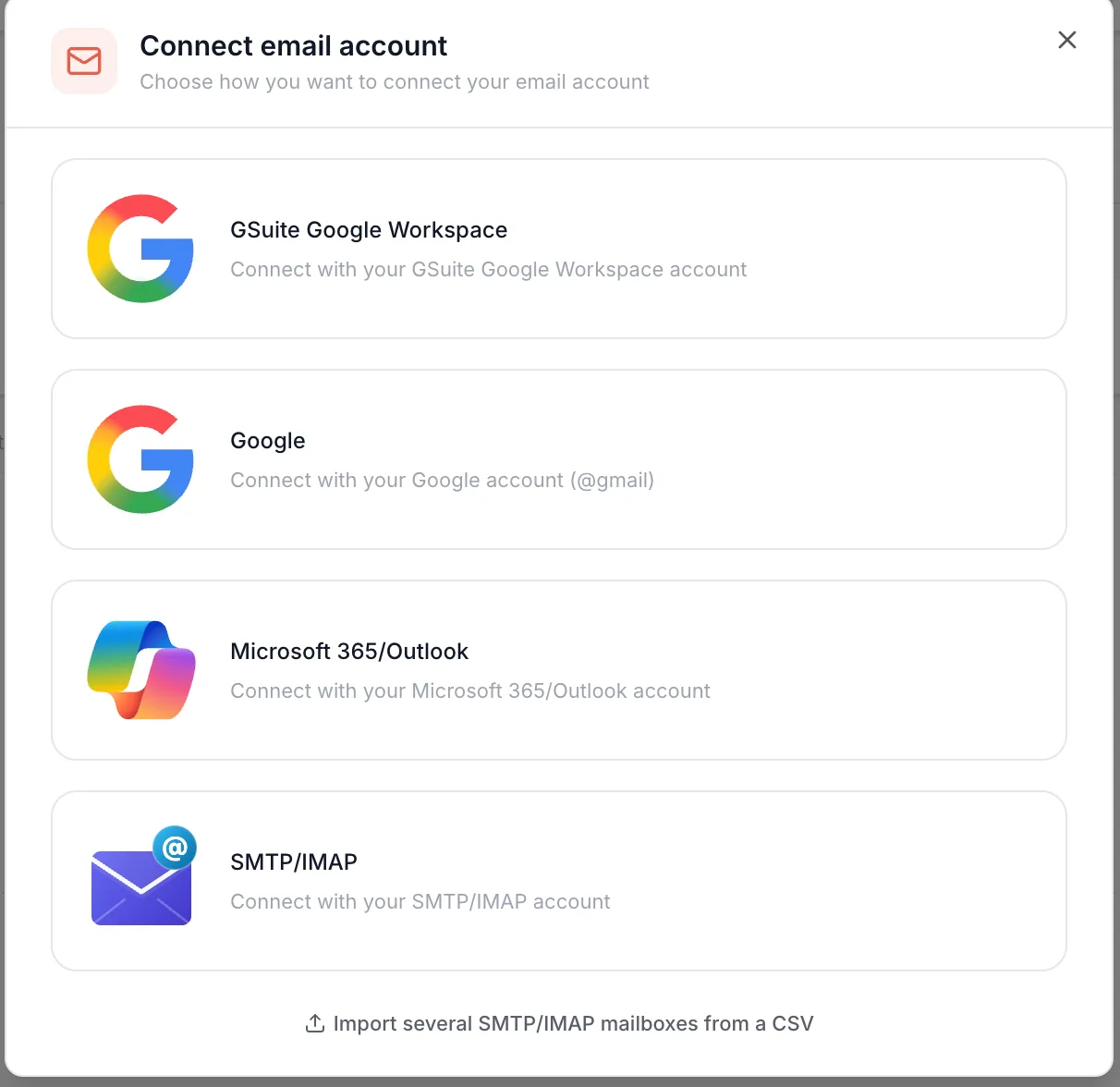
Click the first option, GSuite Google Workspace. Not the second one, Google, which is only for @gmail.com addresses.
 1
1- 1Choose GSuite Google Workspace.
Step 3: approve Emelia in Google Admin, once
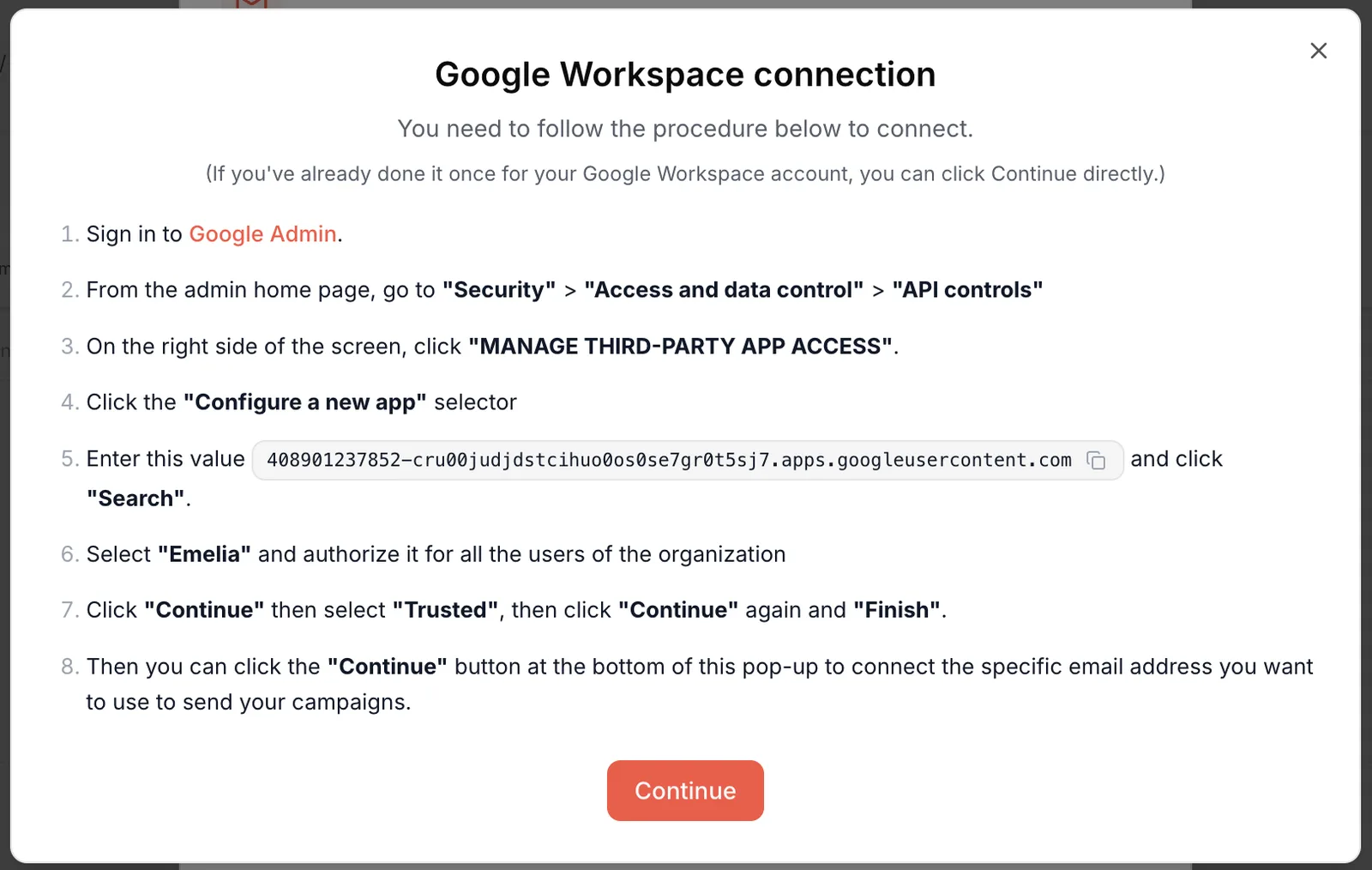
Emelia shows the Google Workspace connection window and its eight-point procedure. It declares Emelia as a trusted app for your organization, in Google's admin console.
This is done only once per organization. If you or your admin already did it for this domain, skip to step 4 by clicking Continue.
 12345
12345- 1Already done for your organization? Click Continue straight away.
- 2Points 1 to 4: open third-party app management in Google Admin.
- 3Point 5: Emelia's client ID, with a button to copy it.
- 4Points 6 and 7: select Emelia and set it to Trusted.
- 5Point 8: come back here and click Continue.
A super admin of your Google Workspace account. If you cannot open the Google Admin console (admin.google.com), send this page to whoever manages your Google Workspace: your IT team, your provider, or the person who took out the subscription. They do not need an Emelia account: it all happens at Google.
Points 1 to 4: open third-party app management
Sign in to admin.google.com with the admin account. From the home page, open Security, then Access and data control, then API controls.
On the right side of the screen, click MANAGE THIRD-PARTY APP ACCESS, then open the Configure a new app menu.
Points 5 and 6: find Emelia
Paste Emelia's client ID into the search field and click Search. In Emelia's window, the small button next to the ID copies it for you. Then select Emelia in the results and allow it for all users in the organization.
Emelia's client ID : The same as the one shown in Emelia's window. It is a public identifier: it grants no access on its own.
408901237852-cru00judjdstcihuo0os0se7gr0t5sj7.apps.googleusercontent.comPoint 7: choose Trusted
Click Continue. For access to Google data, select Trusted, then click Continue again and Finish.
Emelia needs to read, send and organize the email of the connected mailbox. Google classes that permission as "restricted", which the Limited level does not cover. The console describes Trusted as access to all Google Workspace services: that is Google's generic wording. What Emelia asks for does not change: three permissions, all tied to the mailbox (details in the FAQ).
Point 8: back to Emelia
Back in Emelia's window, click Continue. A new tab opens on Google's sign-in page, and Emelia's window shows "Waiting for your Google account to connect…".
Step 4: approve the mailbox at Google
In the Google tab, choose the account of the mailbox you are connecting. It is not necessarily the admin's account: it is the address you want to send your campaigns from.
Google then lists the permissions Emelia asks for. If checkboxes appear, tick them all: without Gmail access, Emelia can neither send nor read replies, and the connection fails. Click Continue.
The tab closes, Emelia's window closes too, and the mailbox appears in your email accounts with the Connected status.
For the next mailbox, repeat steps 1 and 2, then click Continue straight away in the procedure window: the Google Admin setting is already done. If your browser is still signed in to the previous mailbox, choose "Use another account" on Google's page.
Check that your domain is authenticated: SPF, DKIM and DMARC (on Google Workspace, DKIM is switched on in the Admin console). It is all explained on the SPF, DKIM and DMARC page. If you track opens or clicks, also set up a tracking domain.
What can go wrong
- You are not an admin. The Security menu does not show, or the console refuses access. Only a super admin can configure third-party app access: ask them to do points 1 to 7 of the procedure, once.
- Google says access is blocked by your administrator. Emelia has not been approved for your organization yet, or it was approved with a level other than Trusted. Go back to point 7. Note: an app shown as "verified" in the console is not necessarily "trusted".
- The setting was just made and it still fails. Changes made in the Google Admin console do not always apply immediately: Google says they can take up to 24 hours. Try again a little later before starting over.
- You picked the Google option. It is only for @gmail.com addresses and requires an app password. Go back with Choose a different method and pick GSuite Google Workspace.
- The wrong address got connected. Google used the account already signed in to your browser. Delete the mailbox in Emelia, then start again choosing the right account, or from a private browsing window.
- A shared mailbox or an alias. Not possible: Emelia checks that the account giving consent is the address being connected. You need a real user mailbox, with its own license.
Google removed the authorization at account level. Check at myaccount.google.com/permissions that Emelia is still listed, and ask your admin whether a security rule removes it. Reconnecting without fixing the cause only holds for a few hours.
Frequently asked questions
The questions we get asked on this topic, answered briefly.
Do I need to redo the Google Admin setting for each mailbox?
No. It is done once for the whole organization. After that, each mailbox connects by clicking Continue straight away in the procedure window.
Which permissions does Emelia ask Google for?
Three, and only on the connected mailbox: read, compose and send emails; send email on your behalf; see basic profile info (name and address). Nothing on Drive, Calendar, Contacts or Docs, nor on your organization's directory. Emelia uses no domain-wide delegation: only mailboxes connected one by one are concerned, and access can be removed at any time from the Google Admin console or the Google account.
Our IT team would rather not choose Trusted
Google also offers the Specific Google data level, which limits the app to the permissions the admin picks: you then need to approve the three permissions above. We have not tested this setup end to end: if the connection fails with it, get back to support. The Limited level is not enough.
I renamed a Google Workspace address that was already connected
Emelia keeps knowing it under its old address: the mailbox identity is fixed at the moment of connection. Delete the mailbox in Emelia, then reconnect it with its new address.
Can I connect a Google Workspace address with an app password?
That is not the intended method. An address on your own domain goes through the GSuite Google Workspace option; the Google option and app passwords are for @gmail.com addresses.