Connect a Microsoft 365 or Outlook mailbox
A Microsoft 365 or Outlook mailbox connects without typing any password into Emelia: you sign in at Microsoft and approve Emelia. On a business account, the administrator often has to consent first, once, for the whole organization.
Step 1: open the connection window
In the left-hand menu, go to Accounts. At the top right of the Email Accounts block, click Connect mailbox.
 12
12- 1In the left-hand menu, open Accounts.
- 2At the top right, click Connect mailbox.
Step 2: choose Microsoft 365/Outlook
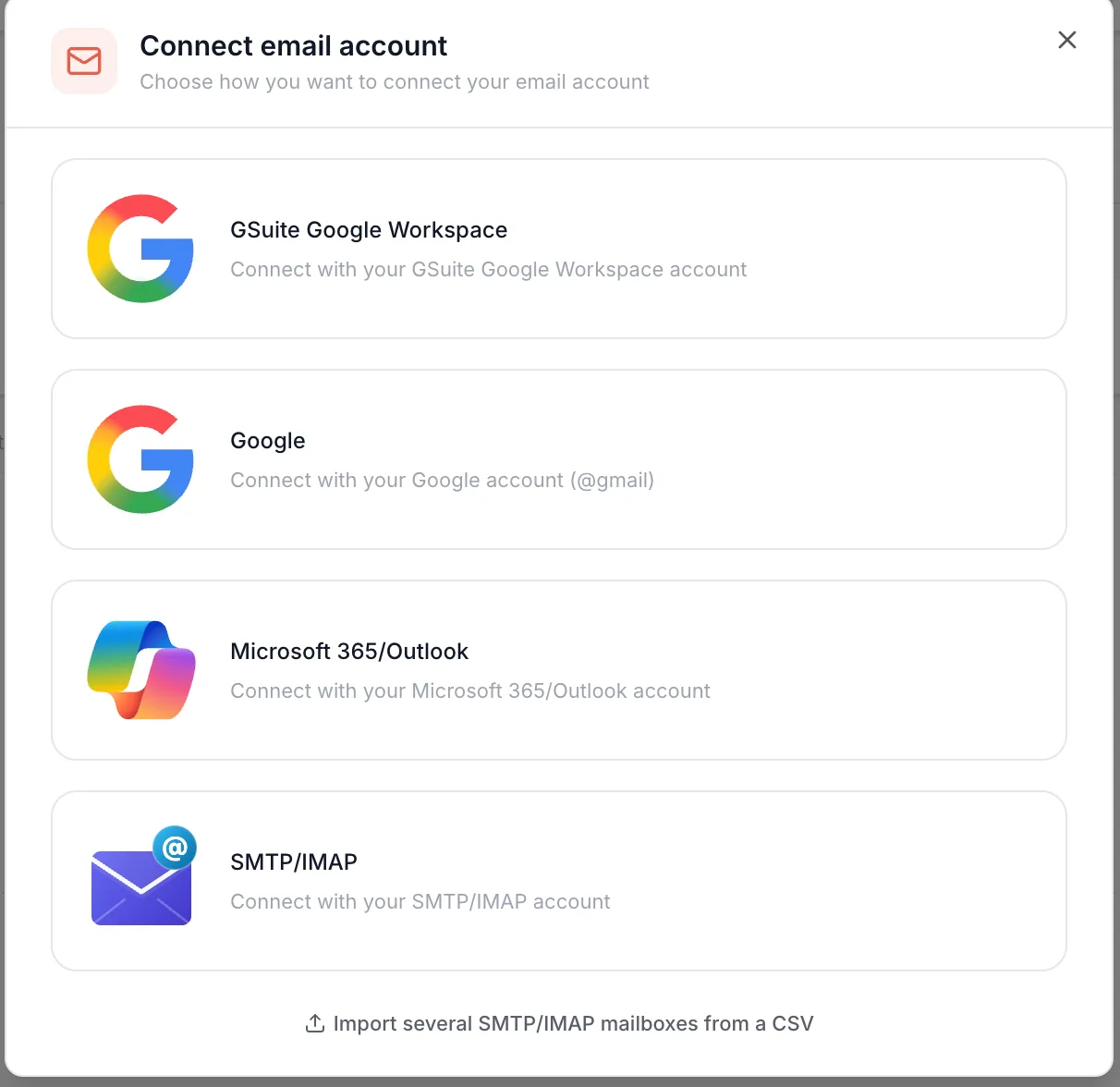
Click the third option, Microsoft 365/Outlook. A new tab opens on Microsoft's sign-in page.
 1
1- 1Choose Microsoft 365/Outlook.
Step 3: sign in with the mailbox's account
Pick the account of the mailbox you are connecting, or type its Microsoft address and password. If your browser is already signed in to another Microsoft account, often the admin's, choose "Use another account", or do the whole thing in a private browsing window.
Step 4: accept the permissions
Microsoft lists the permissions Emelia asks for. Click Accept. The tab closes, Emelia's window closes too, and the mailbox appears in your email accounts.
If Microsoft instead shows a message saying an administrator's approval is needed, sometimes with error code AADSTS90094, your organization does not let users approve apps on their own. Go to the next section.
Check that your domain is authenticated: SPF, DKIM and DMARC (on Microsoft 365, DKIM is switched on in the Microsoft Defender portal). It is all explained on the SPF, DKIM and DMARC page. If you track opens or clicks, also set up a tracking domain.
On a business account: the administrator's consent
For now, only one method works. It takes the administrator of your Microsoft 365 account five minutes:
- 1. The administrator first connects their own mailbox in Emelia, with steps 1 to 3 above.
- 2. On the permissions screen, they tick Consent on behalf of your organization, then click Accept. This checkbox only appears for an administrator account.
- 3. Once their mailbox is connected, they can delete it from Emelia if they do not use it for outreach.
- 4. Everyone in the organization can then connect their own mailbox, with no further approval request.
Granting consent from the Microsoft Entra portal (Grant admin consent) only covers the permissions declared on the app, not all those Emelia asks for when signing in. If the approval message persists after that click, use the administrator sign-in described above.
Ticking the box does not give Emelia access to every mailbox in the organization: it only spares each user from asking the administrator again. Emelia only reaches the mailboxes connected one by one, each by its owner's account, and only their email. Nothing on calendars, contacts, OneDrive, Teams or the organization's directory. And when a mailbox is deleted from Emelia, the access Emelia held for it is erased.
- Read and write the connected mailbox's mail: read replies, mark as read, file messages.
- Send mail as you.
- Sign you in and read your profile: name and address.
- Maintain access, to stay connected without asking for your password again.
What can go wrong
- "This address is already created", or the wrong mailbox reconnects. Microsoft reused the session already open in your browser, often the admin's. Start again in a private browsing window, with the new mailbox's credentials.
- A shared mailbox. Not possible, even with "Send As" rights: the address needs its own Exchange license and its own password.
- The address shown is not the expected one. Emelia keeps the Microsoft account's sign-in name. If it differs from the email address, that is what shows up: ask the administrator to align the two, or connect the right account.
- A hosted Exchange mailbox from another provider (OVH Email Pro, for example). Even if the interface looks like Outlook, it is not Microsoft 365: connect it over SMTP/IMAP.
Error 550 5.7.708 on a brand-new Microsoft 365 tenant
Your first emails from a campaign bounce with "550 5.7.708 Access denied, traffic not accepted from this IP"? It is not Emelia: a mailbox connected this way sends through Microsoft's own servers. Microsoft explains that this message targets mail sent from an IP address it considers low-reputation, which mostly affects recent Microsoft 365 tenants, especially on a trial.
What to do:
- Check in the Microsoft 365 admin center that the subscription is no longer a trial and that every mailbox has its license.
- Send nothing from these mailboxes for about a day: every rejection weighs on the reputation.
- Run a single test the next day, after deleting and reconnecting the mailbox if needed.
- If the error persists, open a request with Microsoft support from the admin center, quoting error 550 5.7.708, and ask for an exception.
To protect your company email, create your outreach mailboxes in a separate Microsoft 365 tenant, on dedicated domains. A block or a reputation drop stays contained there.
Frequently asked questions
The questions we get asked on this topic, answered briefly.
Does Emelia get access to every mailbox in my organization?
No. Even when the administrator ticks consent for the organization, Emelia only reaches the mailboxes connected one by one, each by its owner, and only their email. The consent simply spares each user from asking the administrator again.
Which permissions does Emelia ask Microsoft for?
Delegated permissions, which act on behalf of the signed-in person: openid, profile, email and offline_access for signing in, User.Read for the profile, Mail.Read, Mail.Send and Mail.ReadWrite for mail. Sending and reading replies go through Microsoft's API (Microsoft Graph), not IMAP.
Do I need to register an app in Microsoft Entra?
No. Emelia provides its own app; the administrator only has to approve it, with the method described above.
Does the administrator need to keep their mailbox connected?
No. Once consent is given for the organization, they can delete their mailbox from Emelia: other users can still connect theirs.
The sender name shown is wrong
For a Microsoft mailbox, the Microsoft account's name is what counts. Correct it in the Microsoft 365 admin center: Emelia picks it up when the mailbox reconnects.