Connect a Gmail address: two-factor authentication and app password
For addresses ending in @gmail.com only. Google does not accept your usual password: you need to turn on 2-step verification, then generate a 16-character app password and paste it into Emelia.
It carries none of your branding, inspires less trust from a business, and its sending limits are lower: 30 new contacts a day at most, on a single campaign. Keep it for tests or very small volumes, and prospect from mailboxes on a dedicated domain.
Step 1: open the connection window
In the left-hand menu, go to Accounts. At the top right of the Email Accounts block, click Connect mailbox.
 12
12- 1In the left-hand menu, open Accounts.
- 2At the top right, click Connect mailbox.
Step 2: choose Google
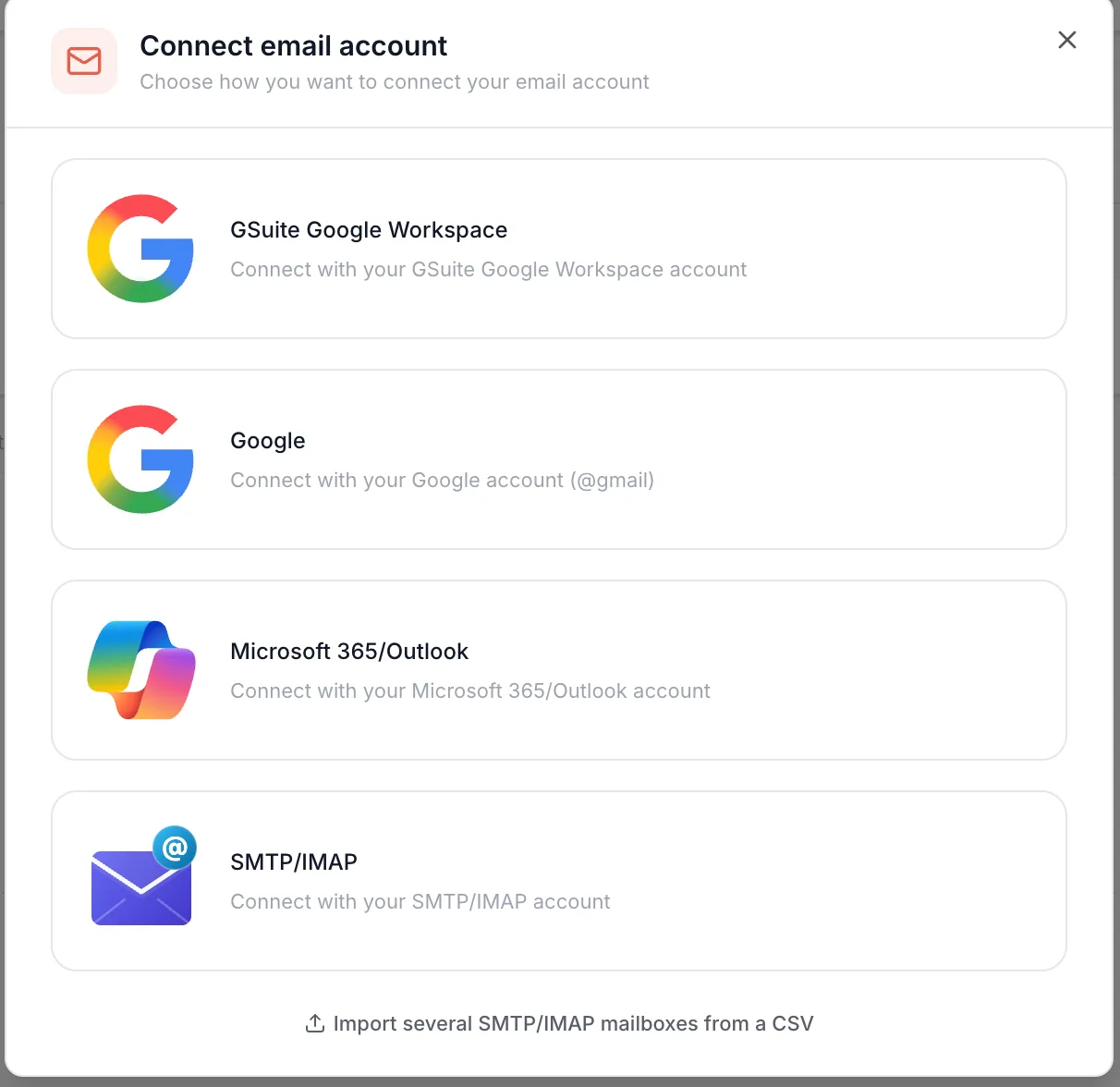
Click the second option, Google ("Connect with your Google account (@gmail)"). If your address is on your own domain, even if you read it in Gmail, pick the first option and follow the Google Workspace steps.
 1
1- 1Choose Google, the option for @gmail.com addresses.
Step 3: turn on 2-step verification
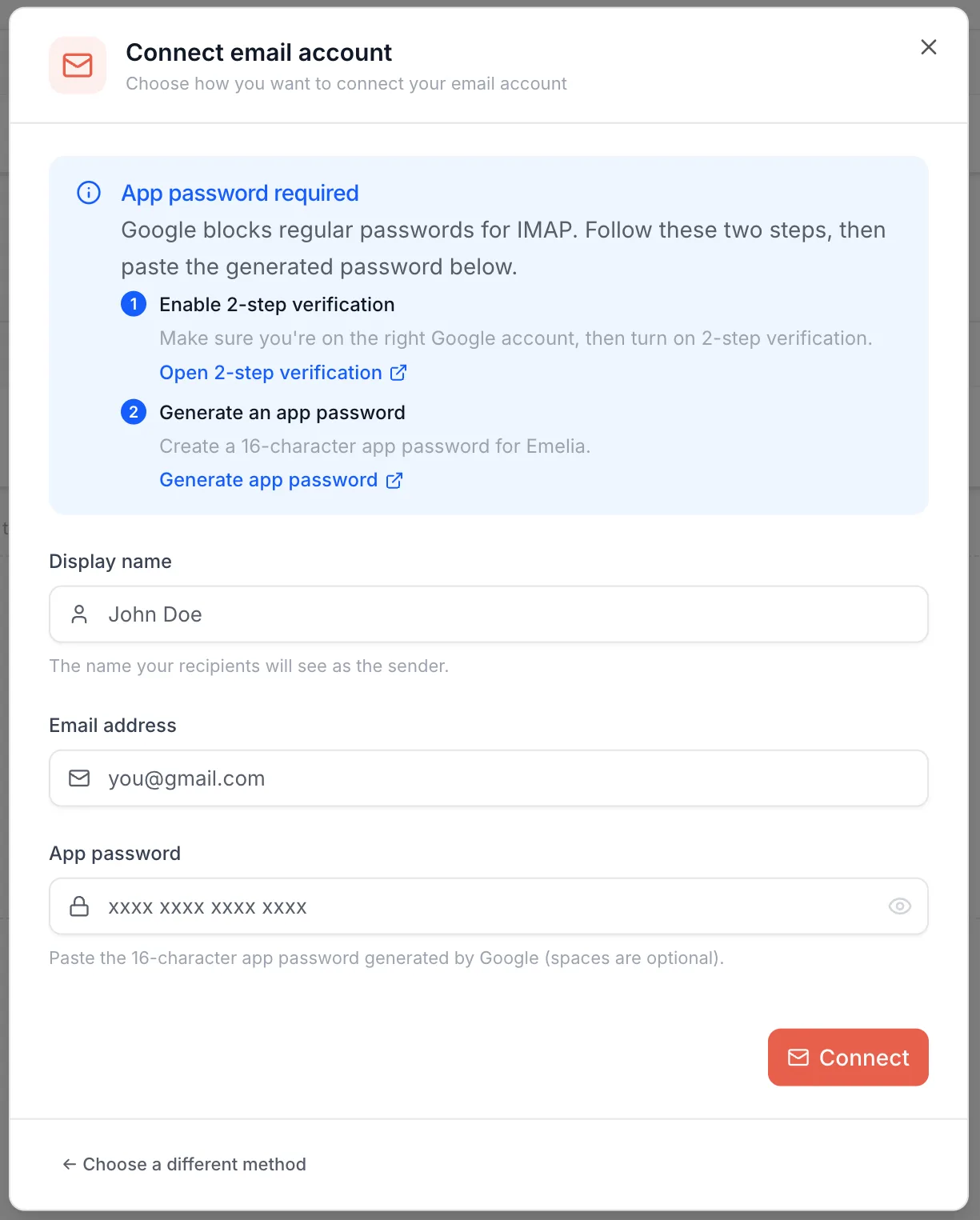
The window shows the App password required box: Google rejects regular passwords for this kind of connection. Click Open 2-step verification: your Google Account security page opens in a new tab.
Check at the top right that you are on the Gmail account you want to connect, then turn on 2-step verification by following Google's instructions, usually with a phone number that will receive a code. If it is already on, move on to the next step.
 12
12- 1Click Open 2-step verification.
- 2Then Generate app password.
Step 4: generate the app password
Come back to Emelia and click Generate app password. On Google's page, give the password a name, for example "Emelia", then click Create.
Google shows a 16-letter code, displayed as four blocks of four. Copy it right away: Google will not show it again. If you lose it, just generate another one.
Step 5: fill in the fields and connect
Back in Emelia, fill in the three fields:
- Display name: the name recipients will see as the sender. A real first and last name.
- Email address: your full @gmail.com address.
- App password: the 16-letter code. Paste it without the spaces if you can: it is the safest way to avoid a password error.
1234- 1Display name.
- 2Email address, ending in @gmail.com.
- 3App password, the 16 letters.
- 4Click Connect.
Click Connect. Emelia tests sending and receiving with Gmail's servers; if everything goes through, the mailbox appears in your email accounts. You have no server to type in.
What can go wrong
- "Invalid email/password combination". Almost always, it is the password: the account's usual password instead of the app password, spaces or a missing letter from copy-pasting, or a code generated on another Google account.
- The app passwords option does not show. Google only offers it when 2-step verification is on. It can also be missing if 2-step verification only uses security keys, if the account is enrolled in Advanced Protection, or if it is an account managed by an organization. In that last case, it is a Google Workspace address: pick the GSuite Google Workspace option.
- Google sends a security alert. On the first sign-in from a new device, Google sometimes asks the owner to confirm it was them. Approve the alert from the Gmail account, then try again.
- The mailbox disconnects after a password change. Changing the Google Account password revokes app passwords. Generate a new one and reconnect the mailbox.
The app password can be deleted at any time from the same page of your Google Account. The mailbox then disconnects from Emelia, without touching your usual password.
Frequently asked questions
The questions we get asked on this topic, answered briefly.
How many emails can I send from a Gmail address?
We recommend 30 new contacts a day at most, on a single campaign. Gmail's limits are lower than Google Workspace's: beyond that, Google slows sending down, then may block the account.
Why does Google reject my usual password?
For an outside connection such as Emelia's, Google only accepts app passwords, which you can only get with 2-step verification on. Your usual password stays the one you use to open Gmail.
Do I need to enter Gmail's SMTP and IMAP servers?
No. Emelia uses Gmail's automatically: smtp.gmail.com on port 465 and imap.gmail.com on port 993, with SSL.
I changed my Google Account password and the mailbox disconnected
That is expected: Google revokes app passwords when the account password changes. Generate a new one, then reconnect the mailbox with it.
Read next