Connect a mailbox with SMTP and IMAP
This is the universal method: it works for every host that is neither Google nor Microsoft. IONOS, Zoho, GoDaddy, Namecheap, OVH and the rest all go through it. Most of the time, the address and password are enough: Emelia finds the servers on its own.
Step 1: open the connection window
In the left-hand menu, go to Accounts. At the top right of the Email Accounts block, click Connect mailbox.
 12
12- 1In the left-hand menu, open Accounts.
- 2At the top right, click Connect mailbox.
Step 2: choose SMTP/IMAP
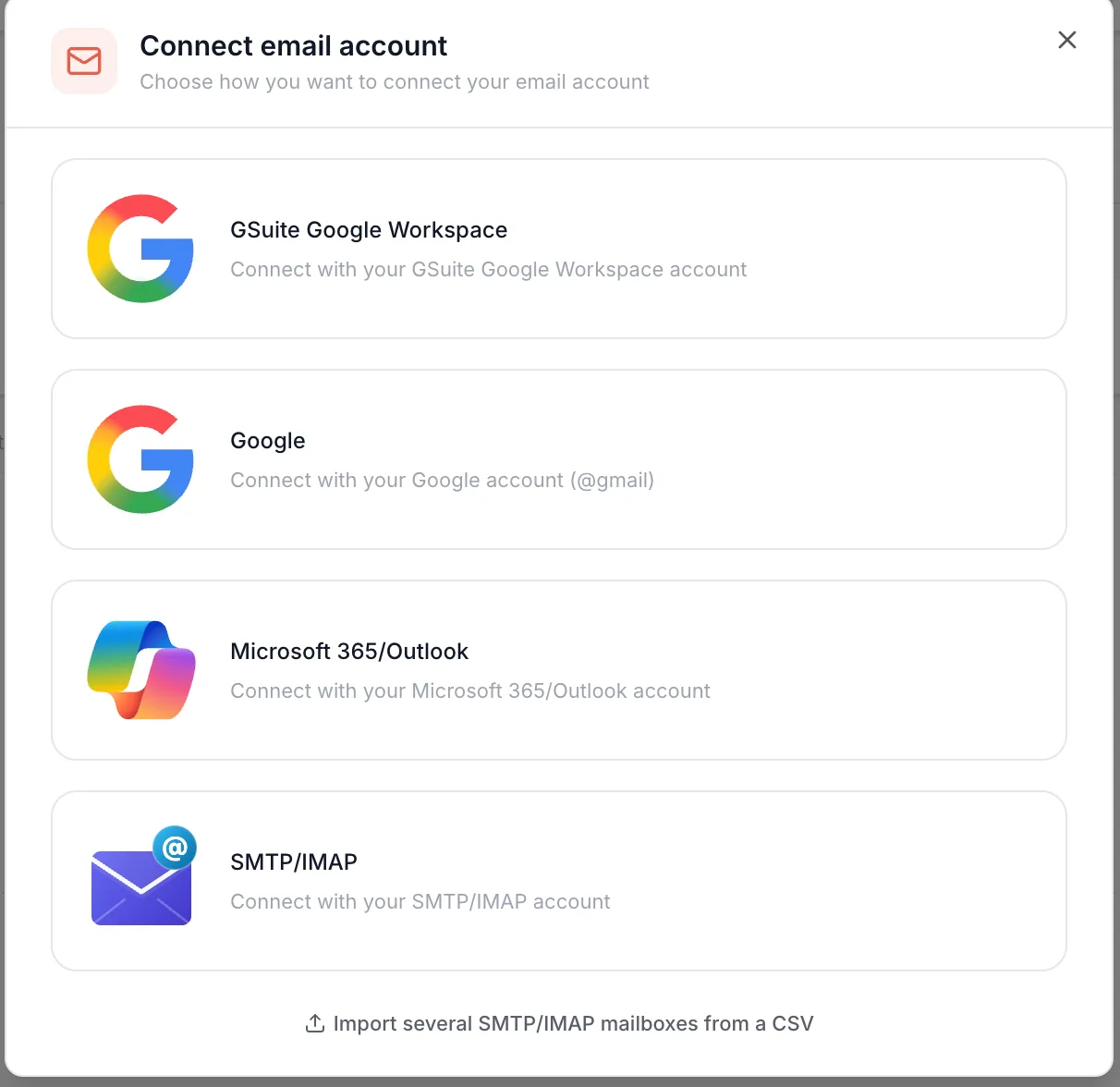
Four methods appear. The first three are reserved for Google and Microsoft: if your mailbox is with either of them, this is not the page you need. For every other host, take SMTP/IMAP, the fourth one.
 12
12- 1Choose SMTP/IMAP. The three options above are only for Google and Microsoft.
- 2Several mailboxes to plug in? The CSV import link, at the very bottom.
Right at the bottom of the same window, a link lets you import several mailboxes at once from a CSV file. That is what you want if you have ten or twenty addresses to plug in, rather than repeating the operation twenty times.
Step 3: address, name and password
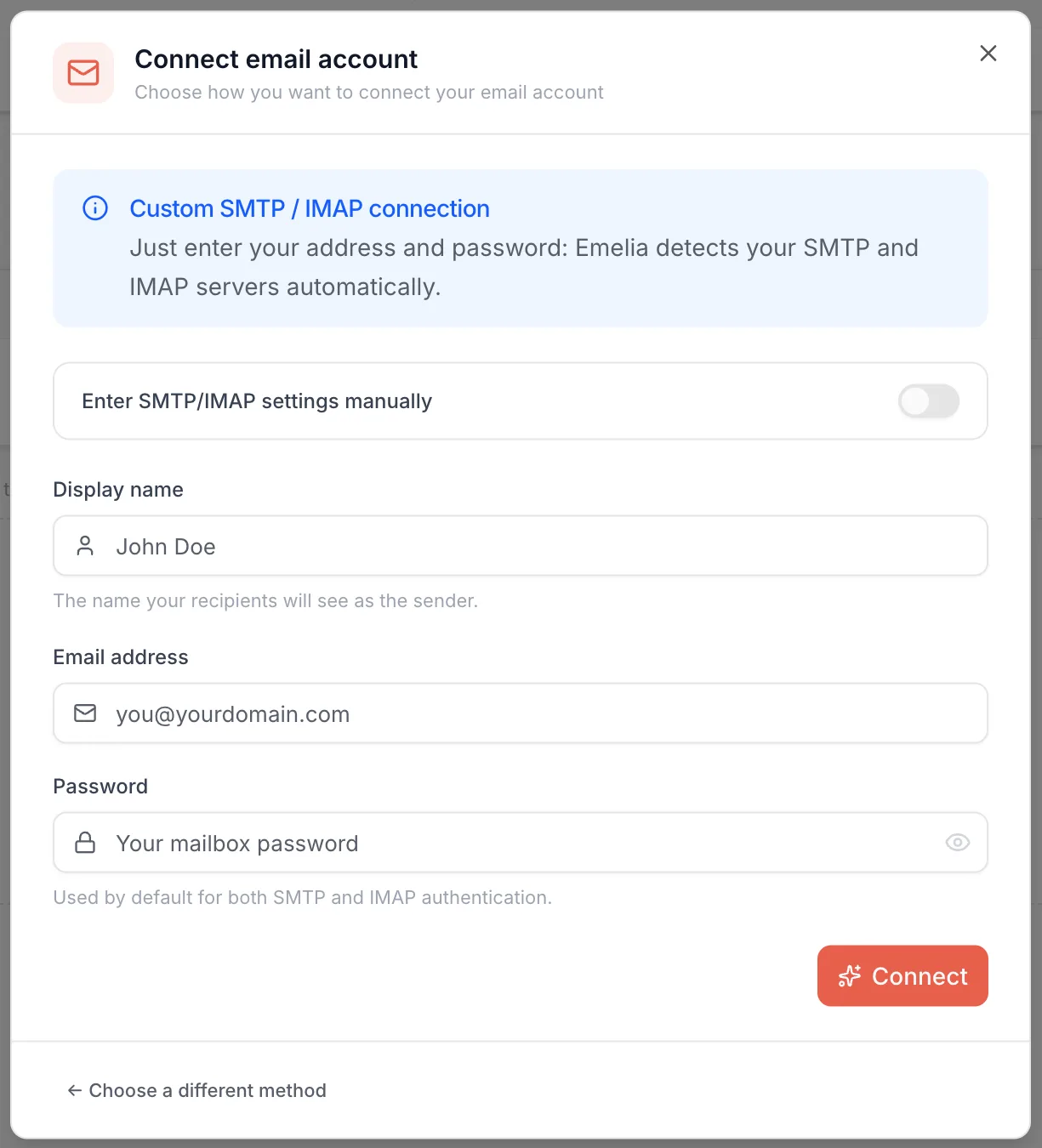
By default, the window only asks for three things: "Just enter your address and password: Emelia detects your SMTP and IMAP servers automatically." Leave the Enter SMTP/IMAP settings manually switch off.
The display name is the name recipients will see as the sender. Watch out for one trap: the name configured at your host can take priority over the one you enter here. So check that your first and last name are set correctly on both sides.
While we are at it, a reminder that matters more than people think: run your outreach from named addresses, not from contact@ or team@. Real first and last names, properly capitalized. A generic address is spotted immediately and treated as bulk mail.
The email address is the address of the mailbox you are connecting. The password is the mailbox's own password, not the password of your customer account at the host: that is the most common confusion at this step.
 1234
1234- 1Automatic detection is on by default.
- 2Leave Enter SMTP/IMAP settings manually off.
- 3The mailbox's Display name, Email address and Password.
- 4Click Connect.
Click Connect. Emelia checks which host receives your domain's email, tries the settings known for that host, then tests sending and receiving. Allow a few seconds to a few minutes. If everything goes through, the mailbox appears straight in the list.
When your domain is hosted on Google Workspace or Microsoft 365, Emelia tells you: "This address is hosted on Google Workspace. Use the GSuite Google Workspace option instead." Follow that advice: those mailboxes have their own, more reliable procedure. See Google Workspace or Microsoft 365.
Step 4: when detection fails, enter the servers
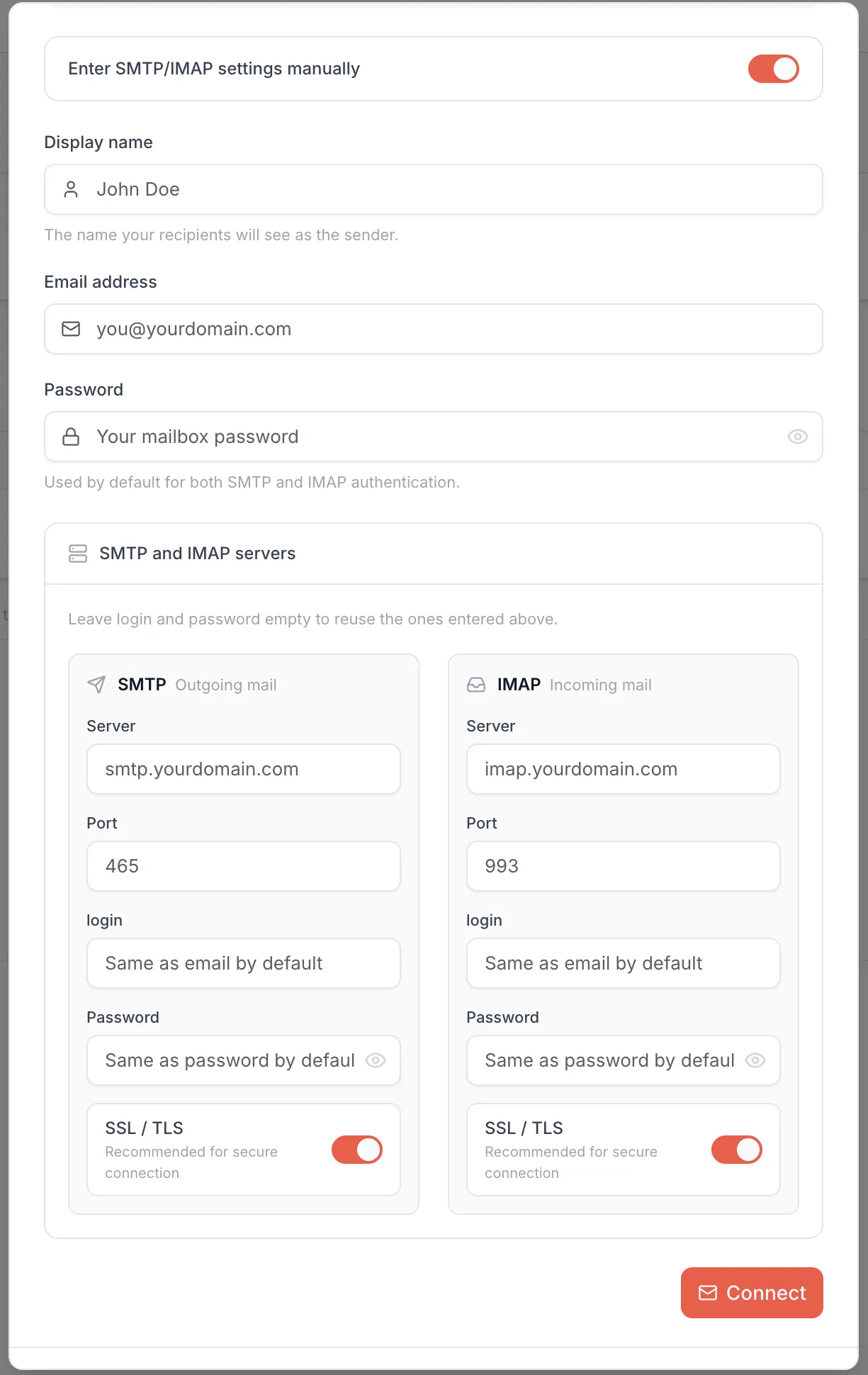
If Emelia cannot find your servers, the window says so ("We could not detect your SMTP and IMAP servers. Please enter them manually below.") and switches to manual entry on its own. You can also turn it on yourself with the Enter SMTP/IMAP settings manually switch.
If the message says instead that your mail server rejected your email or password, the server was found: it is the password that needs fixing, or replacing with an app password, before you try again.
In manual mode, two blocks appear: SMTP (outgoing mail) and IMAP (incoming mail). Here is what goes in each field:
| Field | What to put in it |
|---|---|
| Server (SMTP) | Your host's outgoing server address, for example smtp.ionos.com. Never an email address. |
| Port (SMTP) | 465, with SSL/TLS on, in most cases. Otherwise 587, with SSL/TLS off: the connection then secures itself. |
| Server (IMAP) | The incoming server address. Often the same as the SMTP one, or an imap variant. |
| Port (IMAP) | 993, with SSL/TLS on, in almost every case. |
| login | Leave empty: Emelia reuses the email address. Only fill it in if your host gave you a different login. |
| Password | Leave empty: Emelia reuses the one entered above. Only fill it in if it differs for SMTP or IMAP. |
| SSL / TLS | On with ports 465 and 993, off with port 587. Emelia sets the switch by itself when you type a standard port. |
 12345
12345- 1The manual entry switch, turned on.
- 2Server and Port, SMTP on the left and IMAP on the right.
- 3login and Password: leave empty if they match the ones above.
- 4SSL / TLS: on with 465 and 993, off with 587.
- 5Click Connect.
If port 465 stubbornly refuses the connection, try 587 with SSL/TLS off. That unblocks a good share of cases, including hosts where port 465 is simply not open.
When a mailbox refuses to connect over SMTP/IMAP, it is almost never a problem with Emelia or with your email service: it is one value that is wrong. Go back through the fields and the two SSL/TLS switches one by one, comparing them with your host's documentation. And the other way round: if Emelia confirms the connection is good, it is good, because the send and receive tests really were run.
Check with your hosting provider that your domain is authenticated: SPF, DKIM and DMARC. It is all explained on the SPF, DKIM and DMARC page. If you track opens or clicks, also set up a tracking domain.
Where to find the right settings
In your host's documentation, or by searching Google for the host's name followed by "SMTP IMAP": IONOS SMTP IMAP, Zoho SMTP IMAP, GoDaddy SMTP IMAP. To save time, here are the values for common hosts, taken from mailboxes successfully connected to Emelia:
| Host | SMTP server | SMTP port | IMAP server | IMAP port |
|---|---|---|---|---|
| GoDaddy | smtpout.secureserver.net | 465, SSL on | imap.secureserver.net | 993, SSL on |
| Namecheap (Private Email) | mail.privateemail.com | 465, SSL on | mail.privateemail.com | 993, SSL on |
| Zoho Mail (US data center) | smtppro.zoho.com on a business domain, smtp.zoho.com otherwise | 465, SSL on | imappro.zoho.com, or imap.zoho.com | 993, SSL on |
| Zoho Mail (EU data center) | smtppro.zoho.eu, or smtp.zoho.eu | 465, SSL on | imappro.zoho.eu, or imap.zoho.eu | 993, SSL on |
| IONOS | smtp.ionos.com (smtp.ionos.co.uk, .de, .fr depending on your country) | 465, SSL on | imap.ionos.com (same country variants) | 993, SSL on |
| Hostinger | smtp.hostinger.com | 465, SSL on | imap.hostinger.com | 993, SSL on |
| Titan Mail | smtp.titan.email | 465, SSL on | imap.titan.email | 993, SSL on |
| OVH (MX Plan) | ssl0.ovh.net | 465, SSL on | ssl0.ovh.net | 993, SSL on |
| OVH Email Pro or hosted Exchange | proX.mail.ovh.net (for example pro2.mail.ovh.net) | 587, SSL off | the same | 993, SSL on |
| cPanel hosting | the server name specific to your account, given by your host | 465, SSL on | the same | 993, SSL on |
When in doubt, your host's documentation has the final word. And bear in mind that several hosts in this list throttle outreach sending: our take is in your sending mailboxes.
Frequently asked questions
The questions we get asked on this topic, answered briefly.
Zoho refuses the connection, whatever the settings
With Zoho, IMAP access is locked by default. You first have to go into your Zoho account settings and allow IMAP access, before you even try to connect the mailbox. As long as that setting stays closed, no combination of server, port or SSL will work, and the error shown will not tell you why.
My host rejects my usual password
As soon as two-factor authentication is on for the mailbox, many hosts reject the usual password for an outside connection. They ask you to generate an app password in their own interface: a password dedicated to Emelia, separate from yours. Create one following your host's documentation, then use that one.
Which password exactly should I enter?
The mailbox's, not the one for your customer account with the host. The two are different at most hosts: the customer account manages your subscription and your domains, the mailbox has its own credentials. It is the first thing to check when the connection fails.
What do the error messages mean?
"Connection timed out": the server or the port is wrong, or the port is closed at the host. "Invalid email/password combination": the password is wrong, or the server is not the right one. Either way, go back through the values one by one with your host's documentation. Special characters in the password can also be rejected by some hosts over SMTP/IMAP even when their webmail accepts them: try a password made of letters and digits.
The sender name shown is not the one I entered
The name configured at your host can take priority over the one entered in Emelia. Correct it in the mailbox settings at your host, with the same first and last name, properly capitalized. Both must say the same thing, otherwise recipients will see the host's version.
How many mailboxes can I connect?
As many as your plan allows, and the counter is shown at the top of the Accounts page. To plug in several mailboxes at once, do not repeat the operation one by one: the CSV import link, at the bottom of the connection window, does the job in a single pass.