Import several SMTP/IMAP mailboxes from a CSV
When you have ten or twenty SMTP/IMAP mailboxes to plug in, repeating the operation twenty times makes no sense. A file import connects them all in one pass, and each one is tested before it is added.
Where these mailboxes come from, and what we think of them
First typical case: you created a mailbox on each of your sending domains with a regular host, and you end up with a dozen addresses, all on the same servers.
Second case: you bought a batch of addresses from a reseller that also provides the SMTP, something like Maildoso, MailScale or Mailforge. You end up with twenty mailboxes and twenty sets of settings, and that is exactly where the bulk import earns its place.
A frank opinion while we are here, because it is better to know before you buy: we are not great fans of these resellers. Their deliverability is generally worse than that of a Google Workspace or Microsoft 365 mailbox, and some limit connections to the point of preventing sending. This is not a matter of principle, we test them regularly.
And if you know an SMTP/IMAP provider that is genuinely good, cheap, with deliverability that holds up, tell us. We are interested.
Step 1: open the connection window
In the left-hand menu, go to Accounts, then click Connect mailbox at the top right. It is the same starting point as for a single mailbox.
 12
12- 1Open Accounts in the left-hand menu.
- 2Click Connect mailbox.
Step 2: go through the CSV import
Do not choose any of the four methods. The link you want is right at the bottom of the window: Import several SMTP/IMAP mailboxes from a CSV.
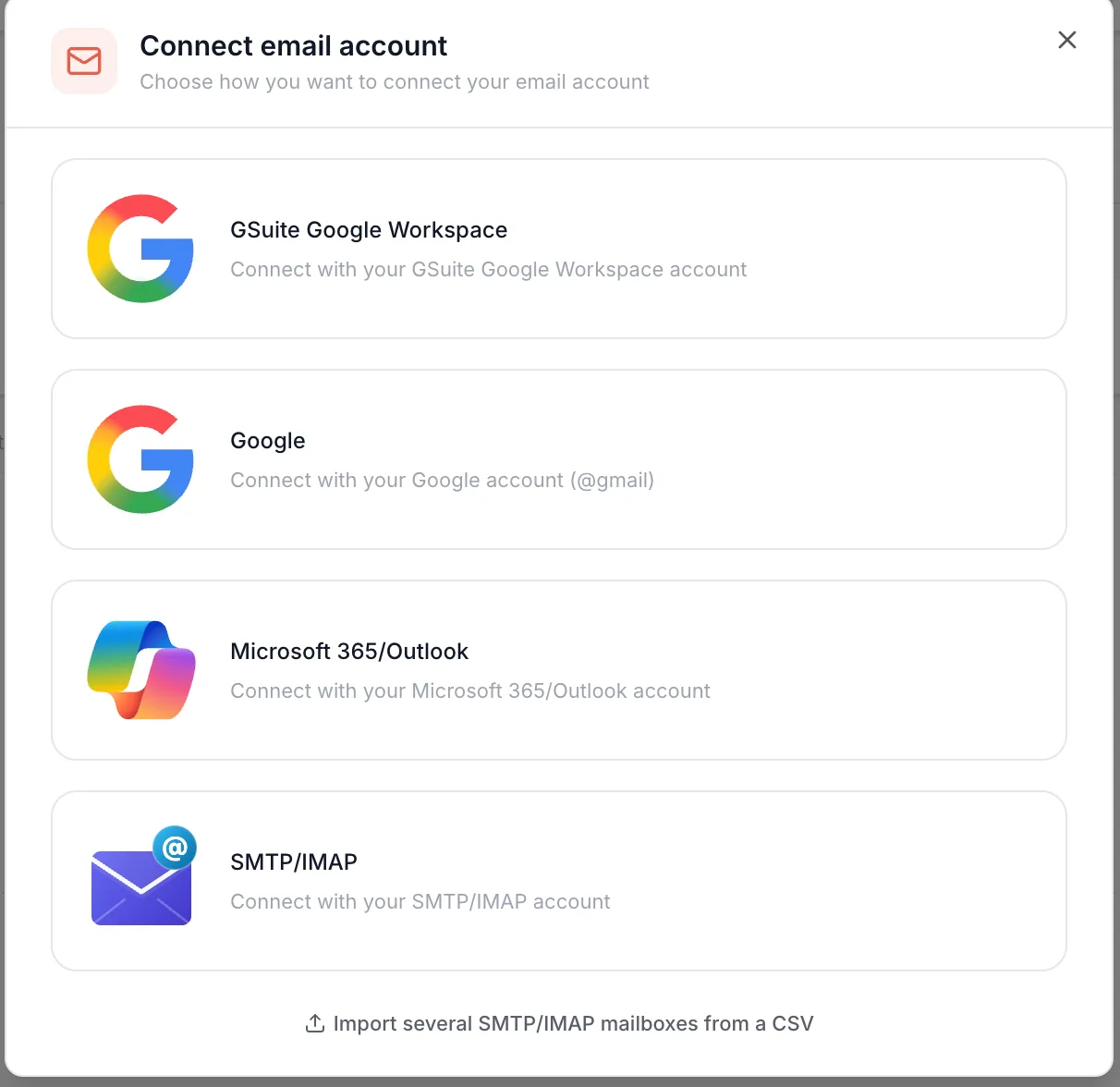 1
1- 1The discreet link at the bottom: Import several SMTP/IMAP mailboxes from a CSV.
Step 3: drop in the file
Drop in your CSV, one row per mailbox.
You can grab the template (Download a CSV template), but we impose no format on you. We put it there because other cold email tools require a file that matches theirs exactly, and people expect to find one. With us, it makes no difference whether your file looks like the template or not: use it if it helps you structure things, ignore it otherwise.
What really counts is that the file contains all the necessary information. Because at the next step, we read the columns of your file as it is, and you are the one who maps them.
Step 4: map your columns to the fields
Emelia shows the columns found in your file, and you say what each one corresponds to: this one is the sender name, that one the email address, that one the password, that one the SMTP server. The Preview column shows the first real value from your file, which lets you check that you are talking about the same thing.
As with a mailbox connected on its own, the SMTP username and password are only filled in if they differ from the address and the password. If your host uses the same ones, leave those values empty in the file, or set those columns to Skip: Emelia will reuse the main values.
Before importing, Emelia flags the rows that will be skipped and why: missing or invalid email address, missing password or server, mailbox already connected to your account, or a row duplicated in the file.
All that is left is to click Import. The button states the real number: "Import 1 mailbox" here, "Import 50 mailboxes" if your file contains fifty. Each mailbox is tested over SMTP and IMAP before it is added: allow a few seconds per mailbox. At the end, Emelia shows the outcome ("Import finished: 48 succeeded, 2 failed") and, for each address, a tick or the error message returned by the server.
If your tracking domain is already set up, put it straight into a column of the CSV and map it to the Tracking domain (CNAME) field: it will be applied to every mailbox at once. If you do not have one yet, it does not matter, it can be configured perfectly well afterwards.
Frequently asked questions
The questions we get asked on this topic, answered briefly.
Does my file have to match the template exactly?
No. The template is offered because other tools impose a strict format, but Emelia reads the columns of your file as it is and lets you map them by hand. The order of the columns does not matter, and neither do their headers. What counts is that the information is present somewhere in the file.
What happens if one mailbox in the file does not connect?
Every row is tested over SMTP and IMAP before it is added, so a mailbox with the wrong settings is not created, and its error message shows in the import summary. The other rows are not blocked because of it. Correct the faulty row and run another import with just that one: the causes are the same as for a single connection, almost always a port, an SSL switch or a password.
How many mailboxes can I import at once?
As many as your plan allows. The number of remaining slots is shown just above the import button, next to the number of mailboxes ready to be imported. If your file goes beyond what your subscription permits, Emelia warns you before the import: mailboxes beyond the limit will be rejected.
One row per mailbox or per domain?
One row per mailbox. If you have three addresses on the same domain, that is three rows, each with its own address, its own password and its own server settings, even if those settings are identical from one row to the next.