Handling the replies to your cold email campaign
Once the campaign is live, the work changes: now it is about replying fast and well. It all happens in Emelia's Inbox, which brings together the replies from all your mailboxes and LinkedIn accounts, and which can prepare your replies for you.
What happens when a prospect replies
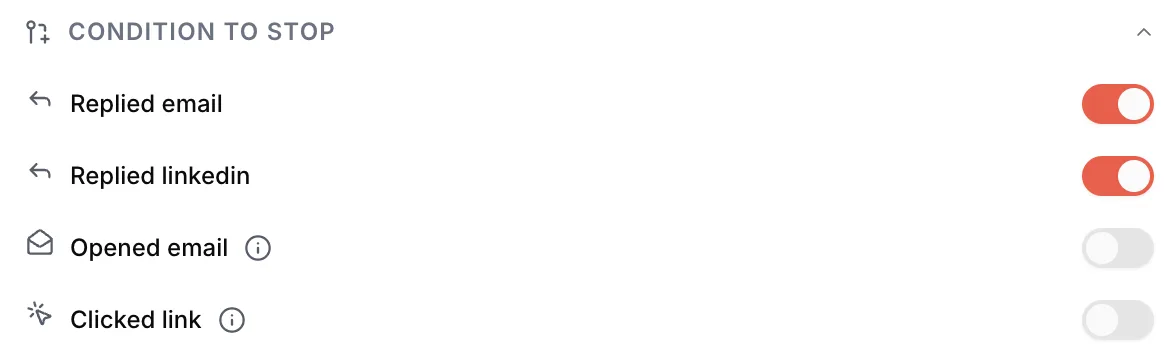
As soon as a reply is detected, the sequence stops for that contact: the planned follow-ups no longer go out. That is the job of the Condition to stop setting, in the campaign settings, where Replied email and Replied linkedin are on by default.
Emelia does not read the content to decide: a "Sounds good", a "No thanks" or a "Stop" all stop the sequence the same way. Replies are checked about once an hour per mailbox: a follow-up scheduled within the hour after a reply can therefore still go out.
 12
12- 1Replied email and Replied linkedin: on by default, leave them on.
- 2Opened email and Clicked link: leave them off, an open or a click can come from a firewall.
To never write to someone again, add their address or domain under Settings, Blacklist: it is checked before every send, in all your campaigns. A LinkedIn blacklist also exists, for profiles. See Blacklist and exclusions.
Out-of-office replies
By default, an automatic out-of-office reply counts as a reply: the sequence stops for that contact, although they read nothing. On a large campaign during the holidays, that can add up to a lot of people.
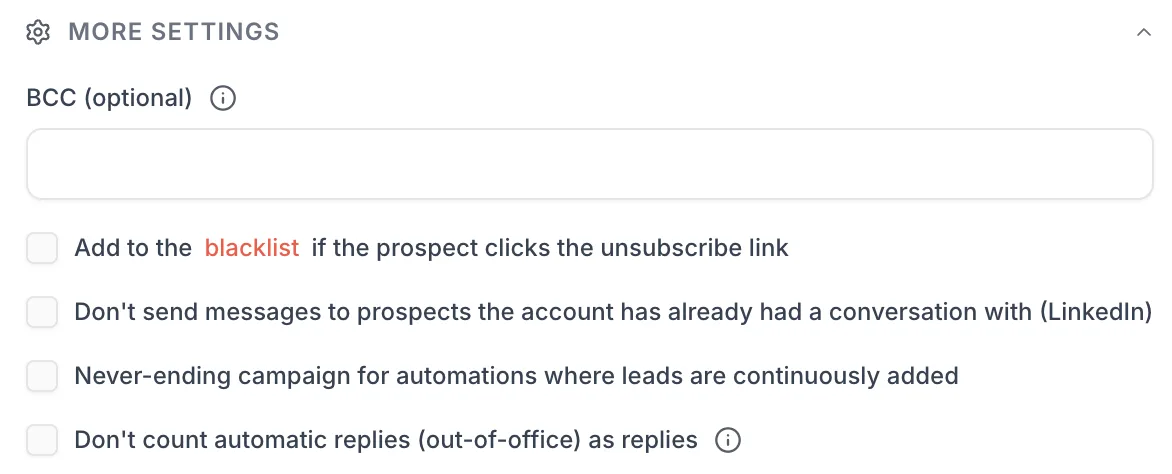
To avoid it, tick Don't count automatic replies (out-of-office) as replies, under More settings. Emelia then spots out-of-office messages through the email's technical headers and their subject line ("Automatic reply", "Out of office"...): the contact is not marked as having replied, and the follow-ups carry on. A real reply written by hand is always a reply.
 1
1- 1Tick Don't count automatic replies (out-of-office) as replies.
The Inbox at a glance
Open Inbox in the left menu. At the top, two tabs: Email for replies to your emails, Linkedin for your LinkedIn conversations. All the mailboxes connected to Emelia are gathered there; the All mailboxes selector lets you show just one.
On the left, the folders: Inbox, Drafts, Sent, Scheduled, but also Waiting for reply, which gathers the emails sent from the Inbox that got no answer, and Filtered emails. Further down, Settings opens the Inbox settings: that is where you will find snippets, AI labels and the rest of this page.
The list shows in Smart mode, which puts unread and pinned emails at the top, or in Classic mode.
The first time: start syncing
On your first visit, the Inbox may show "Your emails aren't synced yet". Your mailboxes are connected: click Start syncing. Emelia then imports the emails from your mailboxes, history included, and they appear as it goes.
If you were using the merged inbox of Emelia's previous version, it is turned off automatically at that point, to avoid duplicates.
1. Snippets to reply faster
A snippet is a piece of text you reuse often, inserted into a reply in one click: your calendar link, your phone number, a short presentation of your offer, the answer to a classic objection.
To create one: Settings, Snippets, then New Snippet. Give it a name, pick an icon and paste the content. Simple mode is enough for a link or a number; Expand to editor opens a full editor for formatted text. Click Save, and it is ready.
In a reply, your snippets show up as icons in the bar at the bottom of the editor. Hover over an icon to see its name, click to insert the text.
The one with your calendar link. When a prospect replies "why not, shall we talk?", your answer is ready in two clicks, and you do not let a lead go cold while you look for the link.
2. AI labels to sort replies
An AI label is a tag the AI puts on incoming emails by itself, based on a condition you write in one sentence. Create one per type of reply you get often: "Meeting request", "Pricing question", "Not now", "Not interested", "Out of office".
To create one: Settings, AI Label, then New rule. Name the label next to Label as, pick its color, and describe the condition in the field after if: "the prospect suggests or accepts a meeting", "the prospect asks for a price". The rule saves as you type.
Be precise, as if you were explaining the rule to an assistant who is new to your business. A vague condition gives approximate labels; if a label gets it wrong, reword the condition. For manual sorting, classic labels also exist, under Settings, Labels.
To write a reply, the AI draws on the replies you have already sent to emails that carried the same label. The more you reply yourself, label by label, the more its drafts sound like you. With no history for a label, it uses your most recent sent emails.
3. Magic Reply and Auto-Draft: drafts ready to review
In a conversation, the Magic Reply button writes a reply based on the email received and your past replies. The draft shows a confidence score, as a percentage, and its reasoning on hover. You review, you adjust, you send.
The next step is to stop clicking at all. In an AI label rule, turn on Auto-Draft: every email that gets this label arrives with a draft already written, marked with the Auto-Drafted badge in the list. The AI's drafts are also stored in Drafts. Nothing goes out without you.
In the editor, two more tools: select a passage to Correct mistakes or Translate it, and use Schedule send to have a reply go out at the time you choose.
Turn it on for two or three labels for a few weeks. Watch the scores, fix the drafts when needed: you will quickly see which types of replies the AI handles reliably. Those, and only those, are the ones you will turn auto-reply on for.
4. Auto-reply: simple answers sent for you
In the same rule, Auto-Reply goes further: the reply goes out on its own. The gear icon next to it opens the Auto-Reply Settings:
- Minimum confidence, from 50 to 100%: below this score, nothing goes out automatically.
- Delay before replying, from 0 to 15 minutes: a reply sent within the second gives the automation away, and this delay leaves you time to step in.
- Notify on send: to be told about every reply sent on your behalf. It then shows in the list with the Auto-Replied badge.
A prospect asking for a slot, a brochure, a link: yes. An objection, a negotiation, a technical question: no, those replies deserve your review. And never turn it on for a label like "Not interested".
5. Filters, views and auto-forward
- Filters: hide from the Inbox the emails from a sender, a domain, a subject or a label. Nothing is deleted, everything stays in Filtered emails. An AI label's Hide from inbox switch does the same for a label: handy for out-of-office replies.
- Views: a view is a filtered list you reach in one click from the left column, for example "Hot leads", which shows only emails carrying the "Meeting request" label. Settings, Views, Create a New View, then add your filters: mailbox, label, AI label, sender, date, read status...
- Auto-forward: send a colleague the emails with a given label, sender or subject. Settings, Auto Forward, New rule. In Invisible mode, the email is forwarded without "Fwd:", and your colleague's reply goes straight back to the prospect. Ideal for an agency or a sales team.
- The shortcut: an email's menu in the list (right-click) offers Filter and Auto-forward, with the rule pre-filled.
6. LinkedIn replies
Switch to the Linkedin tab to see the conversations of your connected LinkedIn accounts. The All Accounts selector filters by account, Unread shows only the conversations to handle, and you reply straight from Emelia, with an attachment or an audio message if needed.
Snippets, AI labels and automatic drafts apply to the Email tab. And a sponsored LinkedIn conversation cannot be replied to: LinkedIn does not allow it.
Following replies from the campaign
In the campaign, the Performance tab tracks replies along with the rest of the statistics. If you turn on Automatic AI classification of response types under Settings, Advanced, each reply gets a category there: Interested, Question, Neutral, Not understood, Out of office, Delegation, Not interested or Hostile.
This classification is separate from the Inbox's AI labels. It is used for campaign tracking and automations, it cannot be corrected by hand, and it has no effect on the sequence, which the reply has already stopped.
What the AI features use up
The AI features use your Emelia credits, like enrichment does: each reply classification, each automatic draft and each reply sent by the AI uses some, for example 1 credit per classified reply and 1 credit per automatic draft. The details are under Settings, Data & AI Credits. Without credits, these features stop; your emails keep arriving.
When the sequence is over
A campaign stays "running" for a while after its last send: it keeps checking for replies, and waits for example for LinkedIn invitations that are still pending. That is normal. After that, the end of a campaign is not a dead end:
- Bring the non-responders back into a new campaign, from another angle or on another channel. When you reuse the same list, bounces and unsubscribes are left out automatically.
- Enrich them with a mobile number to call them: finding a phone number.
- Re-contacting always costs less than rebuilding a list.
Frequently asked questions
The questions we get asked on this topic, answered briefly.
I cannot see my replies in the Inbox.
First check that syncing was started (the Start syncing button on your first visit), then that the mailbox is connected on the Accounts page. If it is, the prospect may have replied from another address, or the reply was forwarded elsewhere without a copy kept in the original mailbox.
A prospect replied, but still got a follow-up. Why?
Replies are checked about once an hour: a follow-up scheduled within that hour can go out before the reply is detected. Other causes: a reply sent from another address than the one contacted, or forwarded without keeping a copy, which Emelia cannot see.
A prospect replied "stop". Do I need to do anything?
Their sequence stopped automatically, as with any reply. To never write to them again, in any campaign, add their address under Settings, Blacklist.
Do out-of-office replies stop my sequence?
By default, yes. Tick Don't count automatic replies (out-of-office) as replies under More settings: follow-ups will carry on for those contacts.
An AI label got it wrong. What should I do?
Reword its condition, more precisely, as if you were explaining it to a new assistant. A short, vague condition gives approximate labels.
Can auto-reply say anything to a prospect?
It only replies on the labels where you turned it on, only above the confidence score you set, and after the delay you chose. Start with Auto-Draft, which prepares drafts without sending anything, and only move to auto-reply for simple answers where the drafts have proved reliable.
Are AI labels and the campaign classification the same thing?
No. AI labels live in the Inbox, you write their conditions yourself, and they are used to sort and prepare your replies. The campaign classification, turned on under Settings, Advanced, files each reply into a fixed category for statistics tracking.