Multichannel outreach: email and LinkedIn together
A multichannel campaign chains LinkedIn and email into a single sequence, with conditions that route each prospect according to what they do. It is formidable at small scale, and counterproductive at large scale. We will look at both.
Step 1: create the campaign
In the left menu, go to Campaigns, then click New campaign in the top right.
 12
12- 1Open Campaigns in the left menu.
- 2Click New campaign.
Step 2: from scratch, or from a template
Give the campaign a name, leave From scratch selected, and click Create. You will build the sequence step by step, adding the email and LinkedIn actions as you go.
Or go to the Templates tab, which holds two multichannel sequences already built for you. That is what we will do here, because they are a good way to understand the logic before building your own. A template gives you the structure and the delays, not the copy.
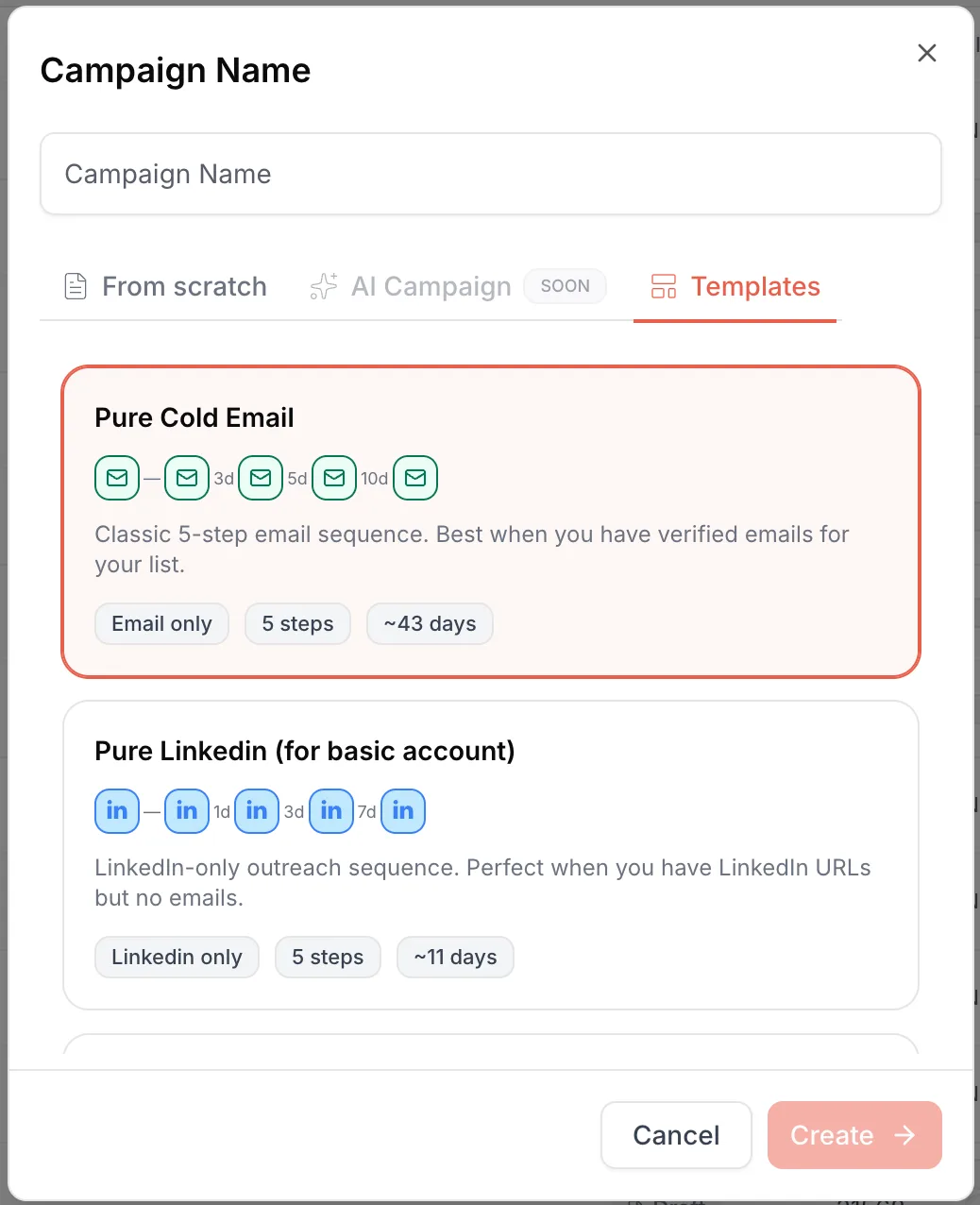 1234
1234- 1The campaign name, which you can change later.
- 2From scratch: you build the sequence by hand.
- 3Templates: the ready-made sequences.
- 4Create opens the builder.
Step 3: which of the two multichannel templates
In the Templates tab, scroll all the way down. Two multichannel sequences are waiting for you, and the choice does not depend on your taste but on the data you have.
Depending on how you built your list, you almost always end up in one of two situations: the LinkedIn URL for everyone but the email address for only some of them, or the reverse. That is exactly the question these two templates answer.
LinkedIn then Email: you have everyone's LinkedIn profile, but not everyone's email address. So the sequence starts on LinkedIn and switches to email whenever it has one.
Email then LinkedIn: the mirror situation. You have everyone's email, but not everyone's LinkedIn profile. It starts with email, with bounce detection, and LinkedIn takes over when a profile exists.
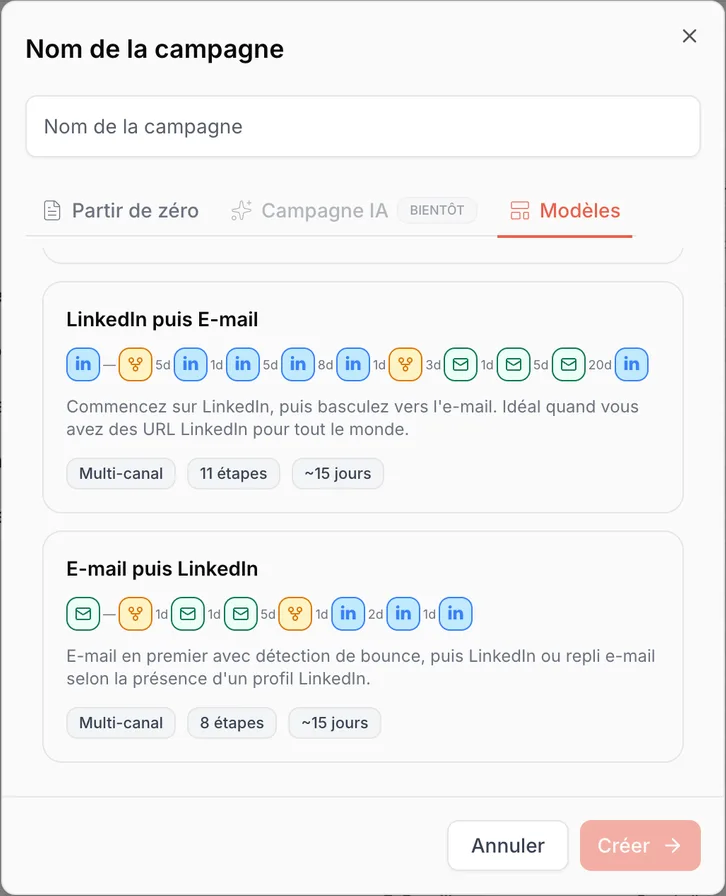 12
12- 1LinkedIn then Email: you have everyone's LinkedIn, not everyone's email.
- 2Email then LinkedIn: you have everyone's email, not everyone's LinkedIn.
The “~15 days” badge gives you an order of magnitude. The real duration mostly depends on when each prospect accepts the connection request, and on your sending days: following its longest branch, a “LinkedIn then Email” sequence rather stretches over several weeks.
When multichannel is a bad idea
Let us say it straight away, because nobody else does: these campaigns are complex, and they are built for moderate volumes.
If you plan to send 50,000 emails, multichannel is pointless. The problem is not the tool, it is LinkedIn: outreach there is far slower and far less scalable than email. Your whole sequence would end up throttled by the narrowest channel.
With large files and plenty of addresses, split things up: an email campaign on one side, and a LinkedIn campaign on the other for the contacts where you only have the profile. Technically you can do everything in a single campaign, and further down we show how to plug several mailboxes into it. But splitting makes your sending limits far easier to read, and you will finally know which channel produces what.
At small scale, on the other hand, on a coherent list, multichannel is exactly the right tool. That is why this page exists.
Step 4: read the sequence
Take the LinkedIn then Email template, the one where you have everyone's profile. Here is the full sequence, then we walk through it branch by branch.
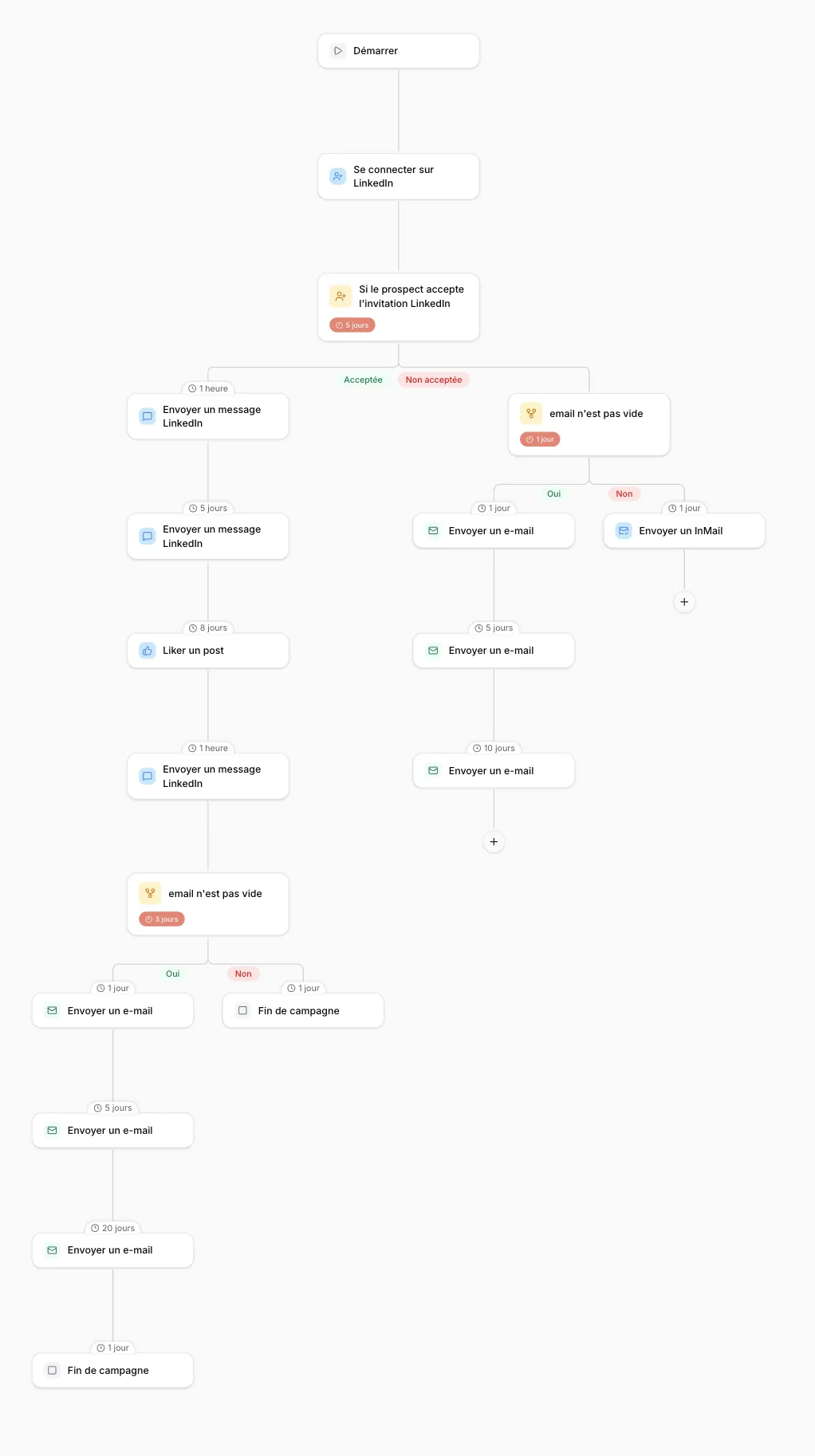 123
123- 1Accepted branch: LinkedIn messages, a like, then emails if you have the address.
- 2Not accepted branch: you switch to email after five days.
- 3Neither accepted nor an email: the InMail, reserved for Premium accounts.
The five-day condition, and why you should not shorten it
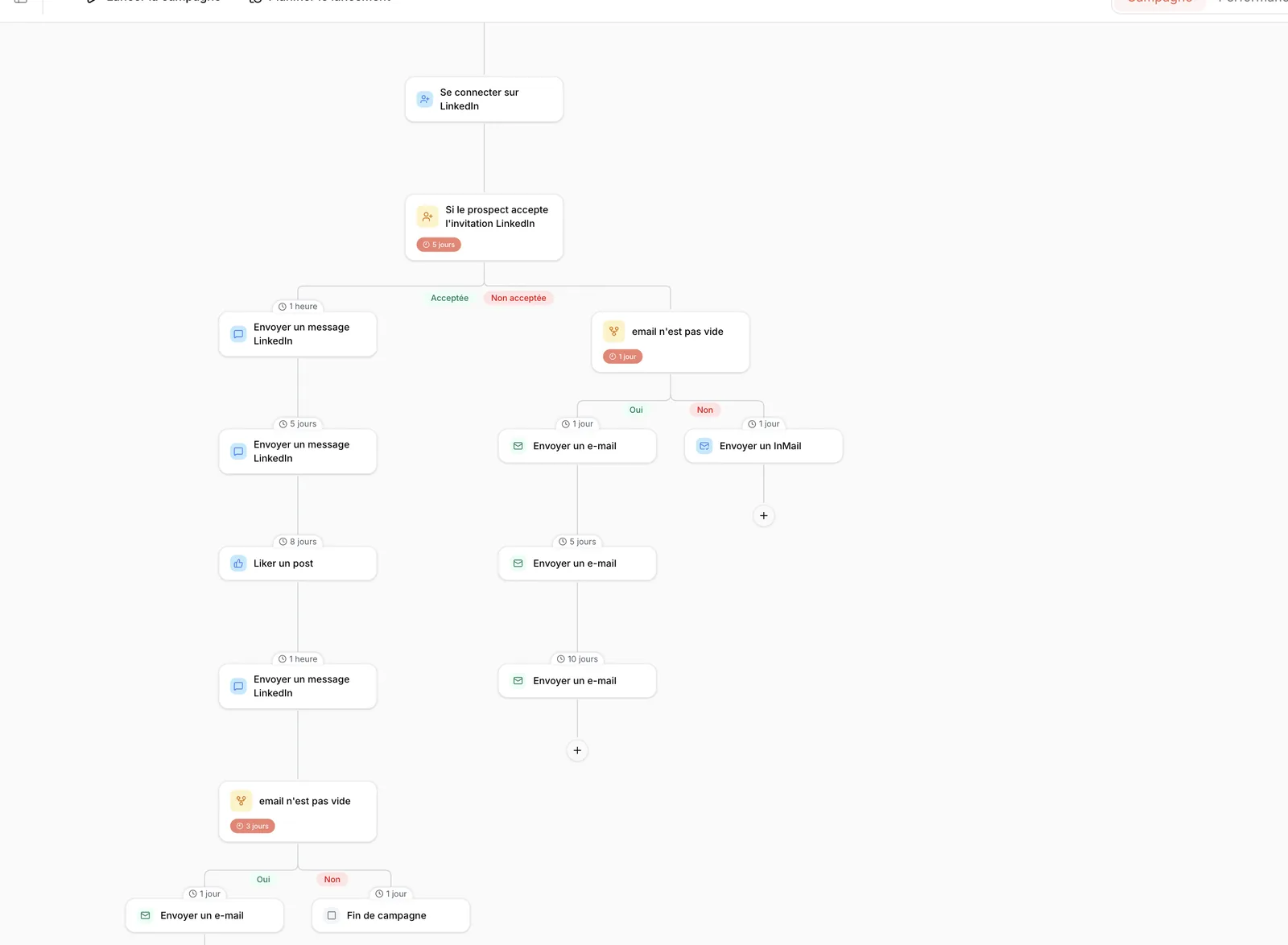
Everything hinges on the If prospect accepts LinkedIn invitation node, with its five-day wait. That number is not decorative.
An acceptance is not detected the second it happens: Emelia checks your account's new connections from time to time, so as not to draw LinkedIn's attention, and it can take up to about two days. And it is the detection date that counts. If you set the wait to one day, someone who accepts your request two days later ends up in the “not accepted” branch, when they were precisely the interested prospect. Plenty of people also take several days to work through their LinkedIn requests. Give them that time.
That is the question that comes up immediately, because LinkedIn gets better reply rates than email. The answer is volume: you can only send 20 connection requests a day, 40 with a Premium account. At Emelia, we send 1,000 emails a day and we stay capped at 40 requests. Even with a lower reply rate, email produces far more replies in absolute terms, simply because we send twenty-five times more of them.
The accepted branch
The prospect accepted the connection request. The sequence sends a first LinkedIn message, then a second one five days later. If they still have not replied, it likes their latest post, which puts you back in their field of view, then sends a third message.
Then comes a condition: email is not empty. If you have the prospect's address, the sequence switches to email and sends three spaced-out messages. If you do not have it, the campaign ends there: nothing more can be done, and that is precisely why a list with emails beats a list without.
A contact with no address who reaches an email step is not put on hold: they are removed from the campaign and receive nothing more, LinkedIn included. They do not come back if you find their email later. The template's email is not empty condition prevents exactly that: keep it, and put the same one before every email if you build your own sequence.
The not accepted branch
Five days have gone by with no acceptance. Same question: do you have the email address? If so, the sequence sends a first email, then a second one five days later, then a third one ten days after that. You can add a fourth if you want, the add button sits at the bottom of the branch.
That leaves the small branch on the far right, the most closed-off case: the prospect did not accept the connection request and you do not have their email. The template then offers an InMail, which assumes a Premium or Sales Navigator account. If you do not have one, delete this step and replace it with an end of campaign.
Or turn it into something useful. If you have the prospect's phone number, replace the InMail with a Manual task named “call the prospect”. The sequence then creates a task for you to handle yourself, which beats abandoning a contact you have already spent a connection request and five days of waiting on.
They show up on the Dashboard, in the Action Required block. For that contact, the sequence waits until you click Mark as done. If you place the If task is successful condition right after the task, a Failed button appears too, and each answer leads to its own branch.
Step 5: write the message for every step
The template gives you the structure, not the copy. Click on each step and check that a message is actually written there. An empty email step blocks the launch, with a message telling you so. An empty LinkedIn message, however, will not be flagged: in an eleven-step sequence, it is very easy to miss one.
This is the real work of the campaign, and it deserves its own page: how to write a message that gets replies, and how to personalize it with the variables in your list.
Step 6: connect your accounts
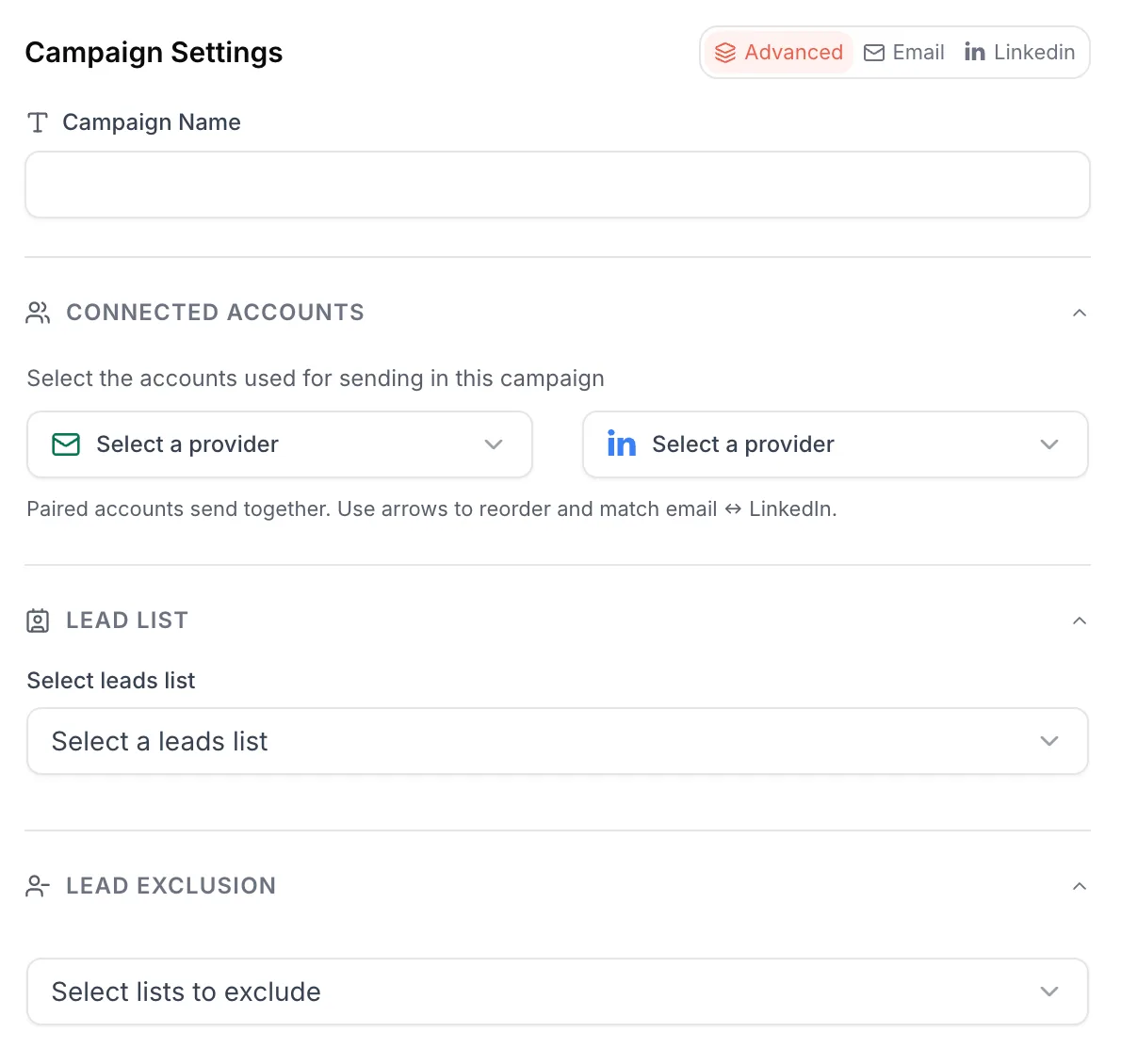
The right-hand panel opens on the accounts, in the Connected accounts block: mailboxes on the left, LinkedIn accounts on the right. If you do not have any yet, now is the time to set them up.
At the top of the panel, the Advanced, Email and Linkedin tabs filter the settings by channel. For multichannel, stay on Advanced, which shows everything.
 12
12- 1Stay on Advanced for multichannel.
- 2Mailboxes on the left, LinkedIn accounts on the right, paired row by row.
There is a pairing rule worth knowing before you get stuck. Accounts placed on the same row form a pair that follows the contact from start to finish. Two combinations are possible, and only two.
As many mailboxes as you want, with a single LinkedIn account. This is the most common case when you prospect on your own: several sending addresses to carry the email volume, but one LinkedIn profile, yours, shared by all the mailboxes.
Or as many mailboxes as LinkedIn accounts, in strictly equal numbers. This is the case for a sales team at moderate volumes. You then line them up two by two with the arrows: Claire's address facing Claire's LinkedIn account, on the same row.
What you cannot do is three LinkedIn accounts and fifteen mailboxes: nobody would know which address goes with which profile any more. If that is your situation, run several campaigns, one per LinkedIn account.
If the pairing breaks this rule, Emelia refuses to launch the campaign with this message: “Your campaign has a LinkedIn step: use a single LinkedIn account (shared by all your email addresses) or pair a LinkedIn account with each email address.” And as soon as there is an email step, every row needs a mailbox.
Step 7: add your contact list
Just below the accounts sits the Lead list. You pick an existing list, or create one along the way by importing from HubSpot, Pipedrive or a CSV file.
This is also where the template choice from step 3 plays out: a list that carries everyone's LinkedIn URL does not call for the same sequence as a list that carries the emails.
1- 1Select a leads list, or create one.
A step can only act if the contact has the data it needs. With no email, a contact who reaches an email step leaves the campaign. With no LinkedIn URL, they leave at the connection request step, and no LinkedIn message can be sent to them. Hence the templates' email is not empty conditions. At launch, Emelia at least checks that one contact in the list has an email if there is an email step, and a LinkedIn URL if there is a LinkedIn step.
Step 8: the last settings before launching
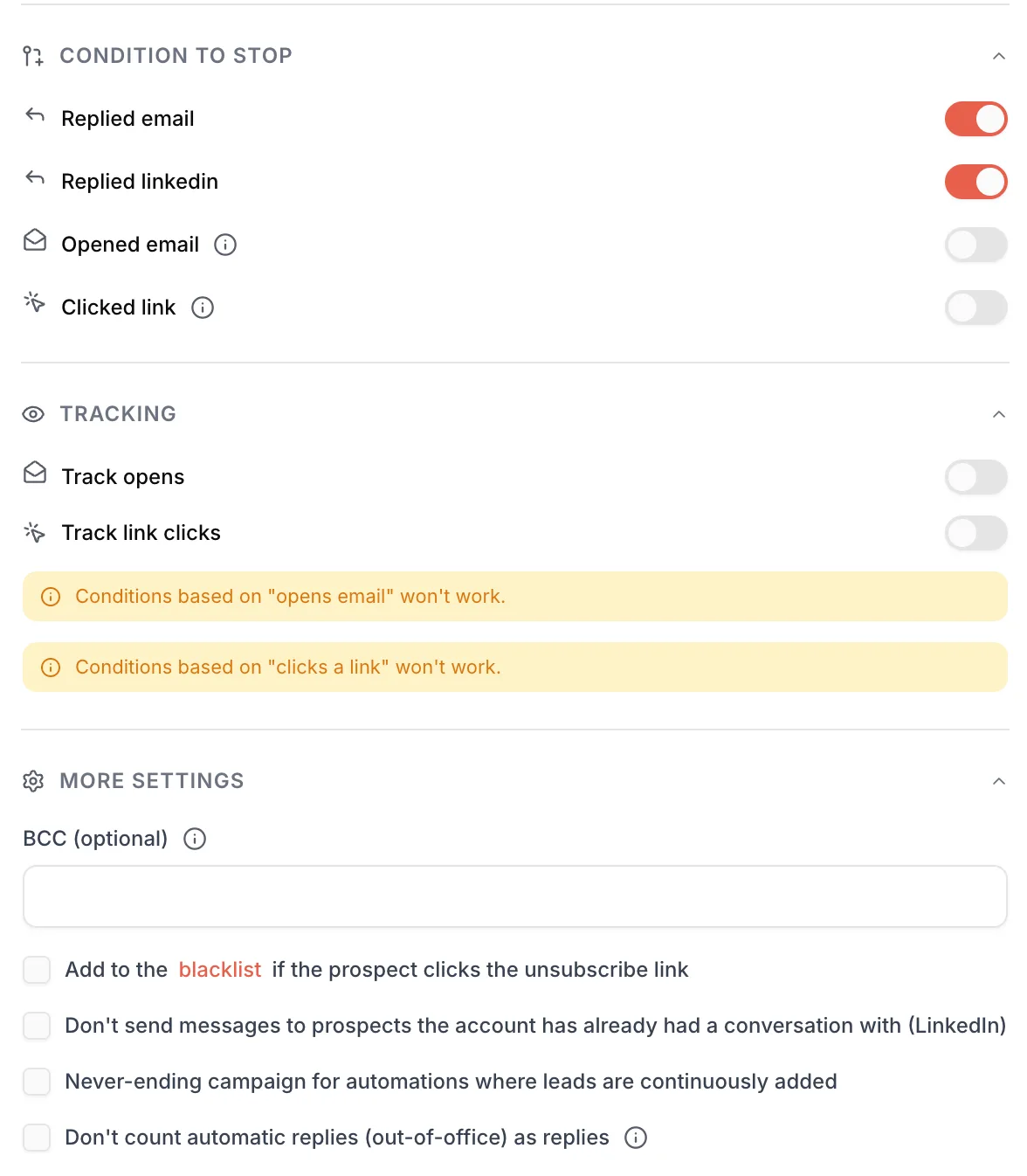
The stop conditions (Condition to stop) deserve a look. By default, the sequence stops for a person as soon as they reply, whether on LinkedIn or by email. That is the behavior you want in almost every case.
The rest, the daily sending limits, the sending hours, open and click tracking, is covered in detail on the email campaign page and the LinkedIn one: the settings are the same, and each channel keeps its own limits. The sending hours, though, are shared by both channels.
And before you hit Launch the campaign, send a test.
 1
1- 1Replied email and Replied linkedin: on by default.
Stop conditions apply to the whole sequence, not to one channel. A prospect who replies to your email no longer gets your LinkedIn messages, and a reply on LinkedIn stops the emails too. A LinkedIn reply always stops the sequence, in fact, even if you switch its toggle off.
Once the campaign is live
To change a running campaign, pause it first: while it runs, its steps, accounts and settings are locked. Pausing removes everything that was scheduled; when you resume, Emelia reschedules each contact based on what they have already received, without resending the steps already done.
A multichannel campaign also stays “running” longer than an email campaign. As long as connection requests sent less than 30 days ago are still waiting for an answer, the campaign is not considered finished. It switches to Finished at the daily check, once nothing else is scheduled and there has been no activity for 24 hours.
Fixing copy, a delay or a setting, or adding steps at the end of the sequence, is no problem at all. Inserting or deleting a step in the middle of a sequence that has already started can, however, throw off the path of contacts who are further along. To rework the scenario in depth, duplicate the campaign and work on the copy.
On a large multichannel campaign, Emelia schedules first sends in batches of 200 contacts, and prepares the next batch as it goes. A given day's volume can therefore stay below your limits. If nothing at all happens on the next sending day, however, contact support.
Frequently asked questions
The questions we get asked on this topic, answered briefly.
Do you need a LinkedIn Premium account for a multichannel campaign?
No, unless you keep the template's InMail step, which does require one. Without Premium, delete that step or replace it with an end of campaign, and the rest of the sequence works normally. Premium also doubles the connection request limit, from 20 to 40 a day, which changes your speed and not your ability to launch the campaign.
How many mailboxes and LinkedIn accounts can I plug in?
Two combinations are accepted: as many mailboxes as you want with a single LinkedIn account, or the same number of each, paired row by row. Different numbers on each side are not possible, because the tool would no longer know which email address matches which LinkedIn profile in the sequence: the launch is refused.
Does the sequence stop when the prospect replies?
Yes, and for both channels: a reply by email also stops the LinkedIn steps, and a reply on LinkedIn also stops the emails. That is the default stop condition setting, and there is practically no reason to change it.
What happens to a contact with no email address?
If they reach an email step, they are removed from the campaign and receive nothing more, LinkedIn included. That is why the templates place an “email is not empty” condition before each run of emails: a contact with no address follows the LinkedIn branch, then the campaign ends cleanly for them. Keep those conditions, and enrich your list beforehand if you can.
Can the delays between steps be changed?
Yes, each step carries its own delay and you change it by clicking on it, with the campaign paused if it is already running. Just watch the delay on the LinkedIn acceptance condition: shortening it pushes prospects who would have accepted a day or two later into the email branch too early.
Why does my multichannel campaign stay “running” when everything seems sent?
Because it is still waiting for something: LinkedIn requests less than 30 days old with no answer, follow-ups not yet sent, or recent activity. It switches to Finished on its own at the daily check, once nothing else is scheduled and there has been no activity for 24 hours. A campaign set as a never-ending campaign never finishes on its own.
Can I add contacts to a campaign that is already running?
Yes. The simplest way is to add the contacts to the list already attached to the campaign: they enter at the first step. If you attach a new list to a running campaign, pause the campaign then resume it so that its contacts get scheduled. And never delete contacts you have already reached in order to re-import them: they would start again from the first step.